
Your child builds a game, adds a score counter, beats their own record, and closes the tab. The next day they open the project and the number is back to zero. Nothing is broken, and they did nothing wrong. Learning how to save a high score in Scratch means learning the one thing that separates a number held in a project from a number held on Scratch's servers, and most tutorials skip it entirely. For parents, this is a useful moment rather than a frustrating one: it is the first time a child meets the idea that some data lives on their computer and some lives somewhere else, which is the foundation of every app they will ever build after Scratch.
What actually happens to a score when the page reloads?
The score was never saved anywhere that would survive. An ordinary Scratch variable is stored inside the project, and the value that loads when anybody opens that project is the value the project's owner last saved. A score your child reaches while playing lives in that browser session and nowhere else.
This is the part that trips up families, and it is worth being precise about, because the distinction is not obvious. If your child is the owner, has the project open in the editor, and saves it, the variable's current value is stored with the project. If your child is playing a shared project, they cannot save it, because it is a project being viewed rather than edited. So their 4,820 goes nowhere.
The deeper reason is the one that matters. An ordinary variable is not shared between computers. Two children playing the same Scratch game are each running their own private copy of that number, and neither copy can reach the other. A high score that only one computer can see is not really a high score at all.
We cover the mechanics of building the score itself in our guide to making a score counter in Scratch. This post is about the step after that one.
What a cloud variable does differently
A cloud variable keeps its value on Scratch's servers rather than inside the project file. It is marked with a small cloud symbol in front of its name, and per the Scratch Wiki its value is "truly global, and is reflected across all copies of the project being viewed on the Scratch Website". That single sentence is the whole feature.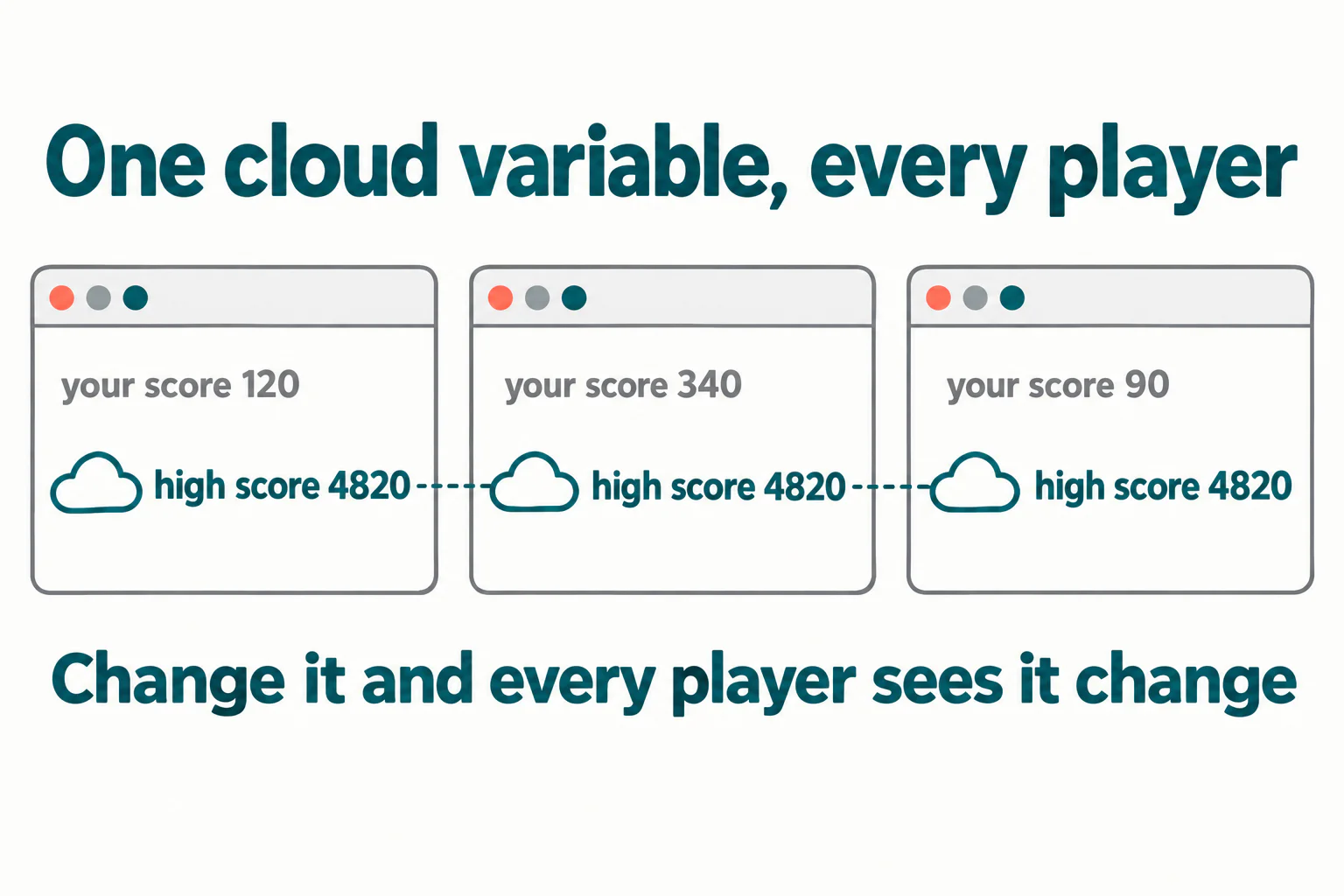
Here is the consequence almost nobody warns children about, and it is the opposite of what they expect. A cloud high score is not your child's high score. It is everybody's. The moment a stranger plays the game and scores better, your child's personal best vanishes from the screen and is replaced by the stranger's. What a cloud variable gives you is a world record, not a personal record, and a nine-year-old who wanted to see their own best score will be upset by this rather than pleased.
That is not a reason to avoid it. A shared record is genuinely exciting when the project is being played by a class or a family, and it is the correct tool for a leaderboard. It is simply a different thing from what the phrase "save my high score" sounds like it means.
Why is the cloud option greyed out?
Because the account is still a New Scratcher. This single fact accounts for most of the frustration around cloud variables, and no tutorial mentions it, because the person writing the tutorial passed that threshold years ago.
Scratch states plainly that cloud data cannot be used by New Scratchers. Promotion to Scratcher is automatic, and the Scratch Wiki lists what generally gets an account there:
- a verified email address
- at least two shared projects
- helpful comments on other people's projects
- roughly two weeks on the site, with real activity
Two details are worth knowing before your child starts counting days. The exact requirements are deliberately not published, so nobody can tell you precisely when it will happen. And the Scratch Team will not promote an account on request, so writing to ask does not help. The honest advice to a child in week one is to build and share two projects, comment kindly on a few others, and come back to the cloud idea in a fortnight.
One more constraint catches children working on a downloaded copy of Scratch: because cloud data is stored on the server, cloud variables cannot be used in the offline editor at all. If your child codes in the desktop app, a cloud high score cannot be tested there. It has to be done in the browser, signed in.
Not sure which level your child should start at? A free trial class with a Codeyoung teacher shows you exactly where they are and what they are ready for next, before you commit to anything.
Book a Free Trial →What a cloud variable will not store
Numbers, and only numbers. The Scratch Wiki is blunt about it: cloud variables "can contain only numbers (unlike regular variables, they can't contain letters or symbols)", with a character limit of 256 digits per variable.
Think about what that rules out. The leaderboard your child has pictured, a tidy top-five list with names beside the scores, cannot be built with cloud variables alone, because a name is letters. Projects that manage it encode each letter as a number, store one long numeric string, and decode it again on load. That is a genuinely advanced technique and it is well beyond a first Scratch game. If a tutorial promises a named leaderboard in ten minutes, it is either using a different mechanism or it is not telling you the whole thing.
Three further limits are worth writing on a sticky note:
| Limit | Value | Why it matters |
|---|---|---|
| Content | Numbers only, up to 256 digits | No names, no letters, no symbols |
| Cloud variables per project | 10 | Enough for a few records, not for per-player data |
| Update rate | 10 times per second maximum | A forever loop runs much faster and will be throttled |
The working script, step by step
Four steps. Each one has a result your child can check before moving on, which is the only reliable way to debug a Scratch project.
- Make the ordinary score variable first. Click Make a Variable, name it
score, and choose "For all sprites". Result:scoreappears in the Variables palette and on the stage. - Make the cloud variable. Click Make a Variable again, name it
high score, and tick the cloud box. Result: it appears with a small cloud in front of its name. If the box is greyed out, see the section above. - Set the ordinary score to 0 at the green flag. Never the cloud one. Put
set score to 0underwhen green flag clicked. Leavehigh scoreout of that stack entirely. Result: starting the game zeroes the current score and leaves the record alone. - Compare once, at the end of the game. Where the game finishes, add
if score > high score then set high score to score. Result: the record only moves when it is beaten, and the cloud variable is written once per game rather than continuously.
Step 3 is the one children get wrong, and the mistake is invisible until it is catastrophic: putting the cloud variable in the green-flag stack wipes the shared record for everyone, every time anybody presses the flag.
Three ways this breaks
The first is the forever loop. A cloud variable accepts at most ten updates per second, and a Scratch forever loop runs roughly thirty times a second, as we found while building the lives counter and game over screen. A cloud set block inside a bare forever loop is therefore asking for about three times the permitted rate, and the updates will not all land. Write to the cloud when something happens, not on every frame.
The second is resetting the record, covered in step 3. Watch for it in two places: the green-flag stack, and any "restart" or "play again" script your child adds later.
The third is testing alone and concluding it works. A single player cannot see the global behaviour of a cloud variable, because there is nothing to compare against. The test that proves it is two devices: open the shared project on a laptop and a tablet, beat the score on one, and watch the number change on the other. If your child has never seen that happen, they have not really seen what a cloud variable is.
What if you want a personal best instead?
Be honest with your child here, because the honest answer is useful. Scratch has no simple per-player storage. There is no built-in way to say "remember this number for this one child and nobody else".
Two reasonable options exist. For a personal best within a single play session, an ordinary variable is perfect and needs no cloud at all: it holds the best score of the afternoon, which is usually what a younger child actually wants. For a record that genuinely persists, the cloud variable is the tool, with the understanding that it belongs to everyone who plays.
A child who finds this limitation annoying has arrived somewhere important. Wanting per-user data that survives a reload is wanting a database and user accounts, and that is the honest reason programmers move from Scratch to text languages. If your child is pushing at that boundary, our guide on whether they are ready to leave Scratch is the right next read, and our Scratch classes cover cloud variables with a teacher who can test the two-device case with them live.
Conclusion
A high score needs somewhere to live that is not the project file, and on Scratch that place is a cloud variable. It stores numbers only, up to 256 digits, ten per project, at no more than ten updates a second, and it cannot be used at all by a brand-new account or in the offline app. Most importantly, the number it holds is shared by every single person who plays the game, so what your child is building is a world record rather than a private one. Set the ordinary score at the green flag, compare once when the game ends, and test it on two devices before believing it works.
Codeyoung runs 1:1 live online classes for children aged 6 to 17, with a teacher who adapts the pace to your child rather than a fixed syllabus. The first class is free, so you can see how they respond before deciding.
Book a Free TrialCloud variable limits and New Scratcher requirements checked against the Scratch Wiki cloud variable reference and the Scratch Wiki New Scratcher page, both checked 2 November 2026.