
The first quiz game in Scratch most children build has a bug that marks correct answers wrong, and the usual suspect is the wrong one. Children and parents assume capital letters are the problem, and plenty of tutorials add extra blocks to handle them. Scratch's = block already ignores capitals; its source code converts both sides to lowercase before comparing. What it does not ignore is a space. Type "Paris " with a space at the end and Scratch says no.
This tutorial builds a complete Scratch quiz in seven steps: asking a question, checking the answer, keeping score, storing questions in lists so the quiz grows without new code, a timer on every question, random order with no repeats, and an end screen. Every block name is as it appears in Scratch 3. For a parent, the value is in what the project teaches underneath: lists, matching items by position, and two scripts cooperating, which is the first real program structure most children meet.
Key Takeaways
ask and waitpauses its own script until the player submits, and the reply lands in theanswerblock.- The
=block is not case sensitive, but it does not trim spaces from text. "Paris " and "Paris" do not match. - Numbers are forgiving: 7, 07, 7.0 and " 7 " all match 7, because Scratch compares them as numbers first.
- Two lists, Questions and Answers, kept in the same order, let a quiz grow from 5 questions to 50 without a single new block.
- A per-question timer needs a second script, and
stop other scripts in spriteis what clears an unanswered question.
Step 1: Ask one Scratch quiz question with ask and wait
Start with a single question so the moving parts are visible. Choose a sprite to be the quizmaster and give it this script:
when green flag clicked(Events).ask [What is the capital of France?] and wait(Sensing).if <(answer) = [Paris]> then, withsay [Correct] for (2) secondsinside andsay [Not quite] for (2) secondsin theelsepart. Use theif then elseblock from Control.
Click the green flag. The sprite shows the question in a speech bubble and an input box appears at the bottom of the stage. The player types and presses Enter or clicks the tick. Expected result: the sprite says Correct or Not quite.
Three behaviours are worth knowing now, because they shape everything later:
- The script really stops. Nothing below
ask and waitruns until the player submits. That is why a timer cannot live in the same script. - Where the question appears depends on who asks. A visible sprite asks in a speech bubble. If the stage asks, or the sprite is hidden, the question text appears above the input box instead, which reads better for long questions.
answerholds only the most recent reply, and Scratch clears it to empty when the green flag is clicked. There is oneanswerfor the whole project, shared by every sprite.
Step 2: How Scratch checks a quiz answer, and the space bug
Scratch's = block makes one decision before it compares anything: can both sides be read as numbers? If yes, it compares them as numbers. If either side is not a number, it compares them as text, after converting both to lowercase. That one rule, visible in the compare function of Scratch's own code, explains every surprise a quiz produces.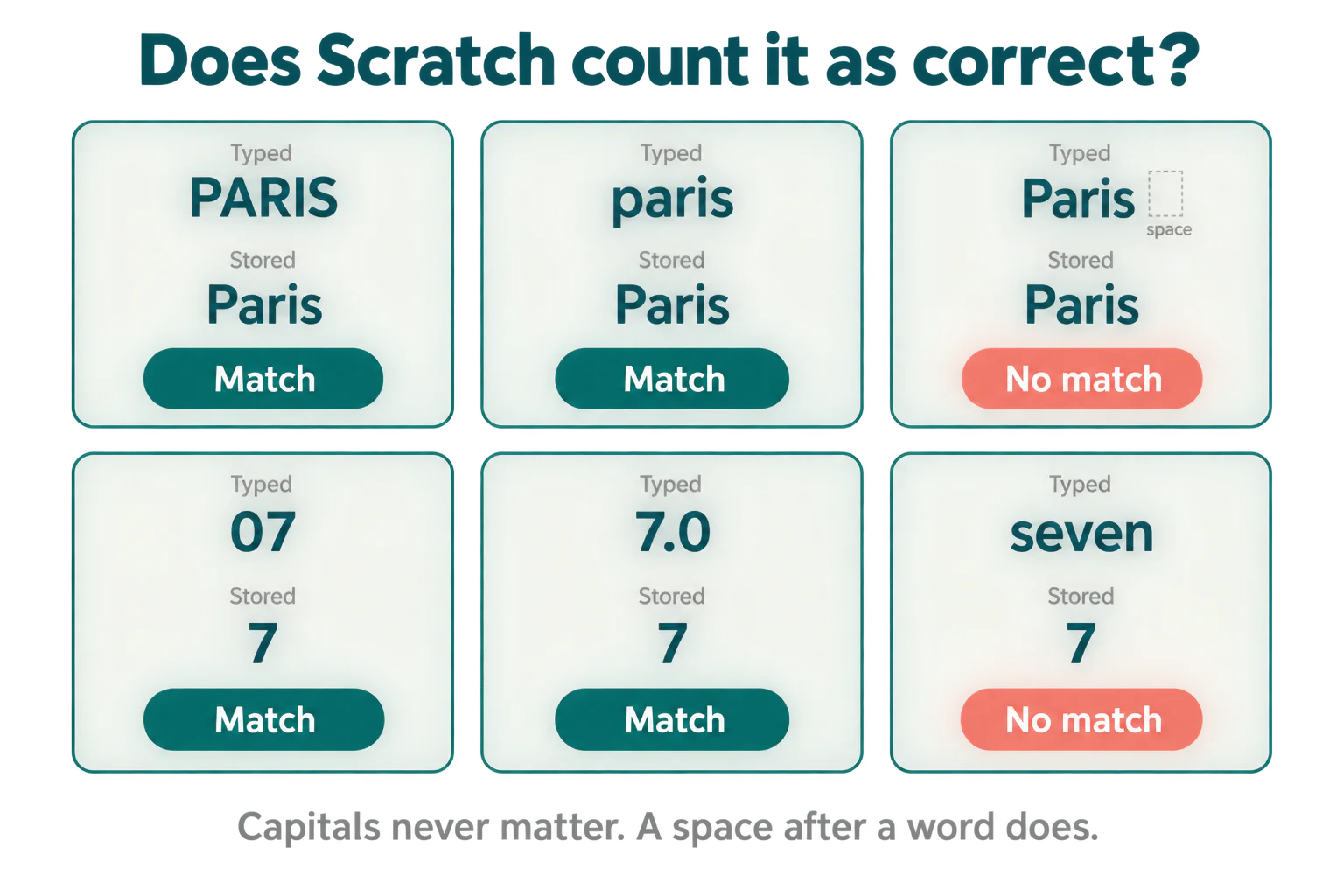
What that means in practice:
| Player types | Stored answer | Result | Why |
|---|---|---|---|
| PARIS | Paris | Match | Text is compared in lowercase |
| Paris (space after) | Paris | No match | Text is not trimmed, so the space counts |
| 07 | 7 | Match | Both read as the number 7 |
| 7.0 | 7 | Match | Both read as the number 7 |
| 7 (space before) | 7 | Match | Spaces around a number are ignored when it is read as a number |
| seven | 7 | No match | "seven" is not a number, so it is compared as text |
| (nothing) | 0 | No match | Scratch treats an empty answer as text, not as zero |
So a maths quiz is forgiving and a word quiz is not. One stray tap of the space bar before Enter is all it takes, and nothing on screen shows the player that it happened.
The fix: a small tidy block that removes spaces
Scratch 3 has no trim block, so make one. In My Blocks, click Make a Block, name it tidy, add one input called text, and tick Run without screen refresh so it finishes instantly. Make two variables, tidied and i. Then build:
set [tidied] to [], leaving the slot empty.set [i] to (0).repeat (length of (text)), usinglength offrom Operators.- Inside the repeat:
change [i] by (1), thenif <not <(join (letter (i) of (text)) (join [5] (letter (i) of (text)))) = [5]>> then. Inside the if:set [tidied] to (join (tidied) (letter (i) of (text))).
That odd-looking test avoids typing a space into a block slot, which is hard to see and easy to get wrong. It wraps the letter around a 5: a space becomes " 5 ", which Scratch reads as the number 5 because spaces around a number are ignored, the same rule as in the table above. Any other character breaks it: "a5a" is not a number, and "050" is 50, not 5. So the test is true only for blank characters such as a space, and only visible letters get copied into tidied. Test the block once before relying on it: run tidy [ Paris ] with the tidied checkbox ticked and the stage should show Paris.
Run tidy (answer), store tidied in a variable called given, then run tidy on the stored answer and compare given with tidied. Spaces vanish from both sides, so "Paris ", " Paris" and "Paris" all match. The trade-off: "New York" and "NewYork" now match too, which for a children's quiz is a feature.
Resist the shortcut of <(answer) contains [Paris]?>. It is also case-insensitive and does ignore stray spaces, but it accepts "not Paris" as correct, and for a number quiz it accepts 12 as an answer to "What is 1 + 1?" because 12 contains 2.
Step 3: Keep score with a variable
Make a variable called score, set to For all sprites, so the end screen can read it. Put set [score] to (0) straight under the green flag hat, before any question, and change [score] by (1) inside the correct branch. Without the reset, the score carries over from the last run. We cover variable scope and the four score blocks properly in building a score counter in Scratch, so here it is one variable and two blocks.
A quiz is often the first project where a child has to keep two scripts and three lists in their head at once. A free trial class with a Codeyoung teacher shows you exactly where your child is with that, and what they are ready for next, before you commit to anything.
Book a Free Trial →Step 4: Store questions and answers in two lists
One ask block per question works for five questions and collapses at twenty, because every change means editing every copy. Lists fix that. In Variables, click Make a List twice to create Questions and Answers, both For all sprites.
The rule that makes the whole design work: item 3 of Answers is the answer to item 3 of Questions. The two lists are matched by position, never by searching. Fill them in the same order using the + button at the bottom of each list on the stage.
Now the question script uses a variable Q for the question number:
ask (item (Q) of [Questions]) and wait- compare the answer with
item (Q) of [Answers]
To add a sixth question, add one item to each list. No new blocks. For a long quiz, typing into the stage gets slow: right-click a list on the stage, choose import, and pick a .txt or .csv file with one item per line. export on the same menu saves the list back out, which is a sensible backup before a big edit. A list can grow to 200,000 items before Scratch 3 refuses to add more, so size is never the constraint. If your child wants better questions than "capital of France", our coding quiz questions for kids has 50 sorted by age, and coding questions make a fitting quiz for a coding project.
Step 5: Shuffle the questions without repeats
The obvious approach, set [Q] to (pick random (1) to (length of [Questions])), repeats questions. With five questions, there is a one-in-five chance the second question is the same as the first. The fix is a third list that acts like a deck of cards.
- Make a list called
Orderand variablesnandpick. - Under the green flag:
delete all of [Order],set [n] to (0), thenrepeat (length of [Questions])withchange [n] by (1)andadd (n) to [Order]inside. Order now holds 1, 2, 3, 4, 5. - For each round:
set [pick] to (pick random (1) to (length of [Order])), thenset [Q] to (item (pick) of [Order]), thendelete (pick) of [Order].
Each round removes the number it used, so Order shrinks by one every question and no number can come up twice. When length of [Order] is 0, every question has been asked.
One detail matters: pick random only returns whole numbers when both inputs are whole numbers. Type 1.0 in the first slot and it returns decimals like 2.71, and item (2.71) of a list is not what anyone wants. Keep it 1.
Step 6: Add a timer to every question
Because ask and wait freezes its script, the clock has to run in a second script that the question script starts. Broadcasts do that. Make a variable answered, a variable time left, and two messages, next question and start clock. The full quizmaster sprite then has three scripts.
Script A, setup:when green flag clicked, set [score] to (0), fill Order as in Step 5, broadcast [next question].
Script B, the question:
when I receive [next question]if <(length of [Order]) = (0)> then:stop [other scripts in sprite],broadcast [quiz over],stop [this script].- Pick
Qfrom Order as in Step 5. set [answered] to (0), thenbroadcast [start clock].ask (item (Q) of [Questions]) and wait, thenset [answered] to (1).- Tidy and compare as in Step 2. Correct:
change [score] by (1)andsay [Correct] for (1) seconds. Wrong:say (join [It was ] (item (Q) of [Answers])) for (2) seconds. broadcast [next question].
Script C, the clock:
when I receive [start clock], thenreset timer.repeat until <<(timer) > (10)> or <(answered) = (1)>>, withset [time left] to ([ceiling] of ((10) - (timer)))inside, takingceilingfrom the dropdown on theabs ofblock.if <(answered) = (0)> then:stop [other scripts in sprite],say [Time is up] for (1) seconds,broadcast [next question].
The line doing the real work is stop [other scripts in sprite]. It ends Script B mid-question, and when a sprite's scripts are stopped, Scratch also removes that sprite's unanswered question and its input box. Without it, the box stays on screen after time runs out. The Scratch Wiki suggests putting the question in a separate sprite for this; it works in the same sprite too, provided the quizmaster holds only these three scripts, since anything else in it would be stopped as well.
Two things that look like bugs and are not. When Script B broadcasts next question to itself, Scratch restarts the script from the top, which is how the quiz loops without a forever. And the timer block is shared by the whole project, so if another sprite also uses reset timer, the two will fight; for a countdown elsewhere in the game, the counting-variable method in our Scratch timer tutorial avoids the clash.
Expected result: tick time left to show it on the stage, click the green flag, and watch it count 10 down to 1. Answer in time and the next question appears at once. Wait, and the box disappears, the sprite says Time is up, and a new question follows.
Step 7: Build the Scratch quiz end screen
The end screen listens for quiz over, so put it on the stage or on a second sprite. Draw a results backdrop, then:
when I receive [quiz over]switch backdrop to [results]say (join [You scored ] (join (score) (join [ out of ] (length of [Questions])))) for (3) seconds, or for a percentage,round (((score) / (length of [Questions])) * (100)).stop [all].
Use length of [Questions] for the total, not length of [Order], because Order is empty by now. Clicking the green flag again resets the score, refills Order and starts a new shuffle. If the score should survive a page reload as a best-ever result, that needs a cloud variable, which saving a high score in Scratch walks through, including why the cloud option is sometimes greyed out.
Where a quiz project goes next
The finished quiz game in Scratch is four scripts, one custom block and three lists, and every extension reuses an idea already built. A third list, Options, turns it into multiple choice. A Topic list plus a filter makes themed rounds. Sending quiz over to a second sprite that plays a sound is the same broadcast pattern explained in our guide to Scratch broadcast blocks.
The honest caveat for parents: Steps 1 to 4 suit a child who has finished a couple of guided projects. Steps 5 and 6 are a genuine step up, because the child has to reason about two scripts running at once and a list that changes while it is being used. A good test of whether the clock is understood rather than copied: remove the answered check, answer a question at the ninth second, and watch the quiz announce Time is up over a correct answer. Working out why takes about five minutes and teaches more than the build did.
Codeyoung runs 1:1 live online classes for children aged 6 to 17, with a teacher who adapts the pace to your child rather than a fixed syllabus. In our Scratch classes, projects like this quiz are built with a teacher watching the screen, so a stray space gets explained rather than guessed at. The first class is free, so you can see how they respond before deciding.
Book a Free TrialSources checked 23 November 2026: the Scratch Wiki pages for Ask () and Wait, Answer, () = (), Pick Random () to (), Item () of (), Stop (), When I Receive () and List; and the scratch-vm source on GitHub (util/cast.js for how = compares, blocks/scratch3_sensing.js for ask, answer and question clearing, blocks/scratch3_data.js for the 200,000 item list limit, blocks/scratch3_operators.js for pick random and contains). Scratch updates occasionally, so check block behaviour on scratch.mit.edu if something does not match.