
Pong in Scratch needs only two sprites and about twenty blocks, which is why it is one of the first real games most children build. A paddle follows the mouse, a ball bounces round the stage, and if the ball gets past the paddle the game ends. Getting it to work takes twenty minutes. Getting it to work well, so the ball never sinks through the paddle, never gets trapped bouncing sideways forever, and gets harder the longer you survive, takes a few blocks most tutorials leave out.
This guide builds the full game in Scratch 3.0 and explains why every block does what it does, using the block names exactly as they appear in the editor. For parents: by the end your child will have used coordinates, angles measured in degrees, variables, random numbers and a Boolean condition joined with and, in a game they can play against a friend or the computer. Each step ends with what should happen when they click the green flag, so they can check their own work.
Key Takeaways
- The paddle bounce is point in direction ((180) - (direction)). It mirrors the ball off a flat, horizontal surface because 0 is up and 180 is down in Scratch.
- Only bounce when the ball is falling. Running 180 minus direction twice gives back the direction you started with, which is how balls sink through paddles.
- if on edge, bounce cannot rescue a flat serve. In the Scratch 3.0 source it only reverses the part of the motion pointing into the wall, so a ball moving at 90 bounces sideways forever.
- Serve with pick random (150) to (210), not -180 to 180. About 1 serve in 9 from the wider range is within 10 degrees of flat.
- A speed variable that rises by 0.5 per hit, capped at 14, makes the game harder without becoming unplayable.
What you need before you start
Two sprites from Scratch's own library and one drawn line. Click Choose a Sprite and add Paddle and Ball; both are in the library and need no drawing. The Paddle is a flat bar about 88 pixels wide and 14 tall. The Ball is about 44 pixels across and has five colour costumes. Delete the cat.
Two facts about the stage matter for everything below. It is 480 pixels wide and 360 tall, so x runs from -240 on the left to 240 on the right and y from -180 at the bottom to 180 at the top. And Scratch runs scripts at 30 frames a second, so a forever loop with move (10) steps inside moves a sprite 300 pixels every second.
If your child has never made a game before, our guide on how to make a game on Scratch covers sprites, scripts and the green flag from the beginning. Pong assumes they can already drag blocks into a script.
Step 1: make the paddle follow the mouse
Click the Paddle sprite and build:
when green flag clickedset y to (-150)foreverset x to (mouse x)
set y to (-150) fixes the paddle 30 pixels above the bottom of the stage and never changes again. Inside the loop, set x to (mouse x) copies the mouse pointer's left-right position 30 times a second, so the paddle slides with the mouse but can only move sideways. That one-axis movement is what makes it Pong rather than air hockey.
Click the green flag and move the mouse across the stage: the paddle should follow left and right and stay at the same height.
Arrow keys instead of the mouse
Some children prefer the keyboard, and the 2-player version later needs it. Replace the loop's contents with two if blocks:
foreverif <key (left arrow) pressed?> thenchange x by (-10)if <key (right arrow) pressed?> thenchange x by (10)
Use key () pressed? from Sensing inside a loop, not the when () key pressed hat. The hat waits for the keyboard's own repeat, so the paddle jerks once, pauses, then moves. The loop checks the key every frame and moves smoothly. At 10 pixels a frame the paddle crosses the whole stage in about 1.6 seconds.
Step 2: make the ball move and bounce off the walls
Click the Ball sprite. Start with the simplest version that moves:
when green flag clickedgo to x: (0) y: (100)point in direction (135)forevermove (10) stepsif on edge, bounce
Scratch measures direction in degrees clockwise from straight up: 0 is up, 90 is right, 180 is down and -90 is left. So 135 is down and to the right, halfway between right and down. move (10) steps moves the ball 10 pixels along that direction every frame.
if on edge, bounce checks whether the ball is touching any edge of the stage. If it is, the block works out which edge is nearest, flips the part of the ball's motion that points into that edge, and pushes the ball back inside the stage. Hit the right wall and the sideways part reverses; hit the top and the up-down part reverses.
Click the green flag: the ball should zigzag round the stage, bouncing off all four edges, including the bottom. The bottom bounce is temporary; step 5 turns it into the losing zone.
Step 3: bounce the ball off the paddle with 180 minus direction
Add this inside the ball's forever loop, below if on edge, bounce:
if <touching (Paddle)?> thenpoint in direction ((180) - (direction))
The direction reporter is at the bottom of the Motion category; drag it into the right-hand slot of a ( ) - ( ) block from Operators, and type 180 into the left.
Why 180 minus direction works
Take a ball falling at 150, which is down and slightly right. 180 minus 150 is 30, which is up and slightly right. The sideways part of the motion is unchanged and the up-down part has reversed: exactly what a ball does when it bounces off a flat floor. It works from the other side too. A ball falling down and to the left is at -150, and 180 minus -150 is 330. Scratch stores every direction between -179 and 180, so 330 becomes -30, which is up and to the left.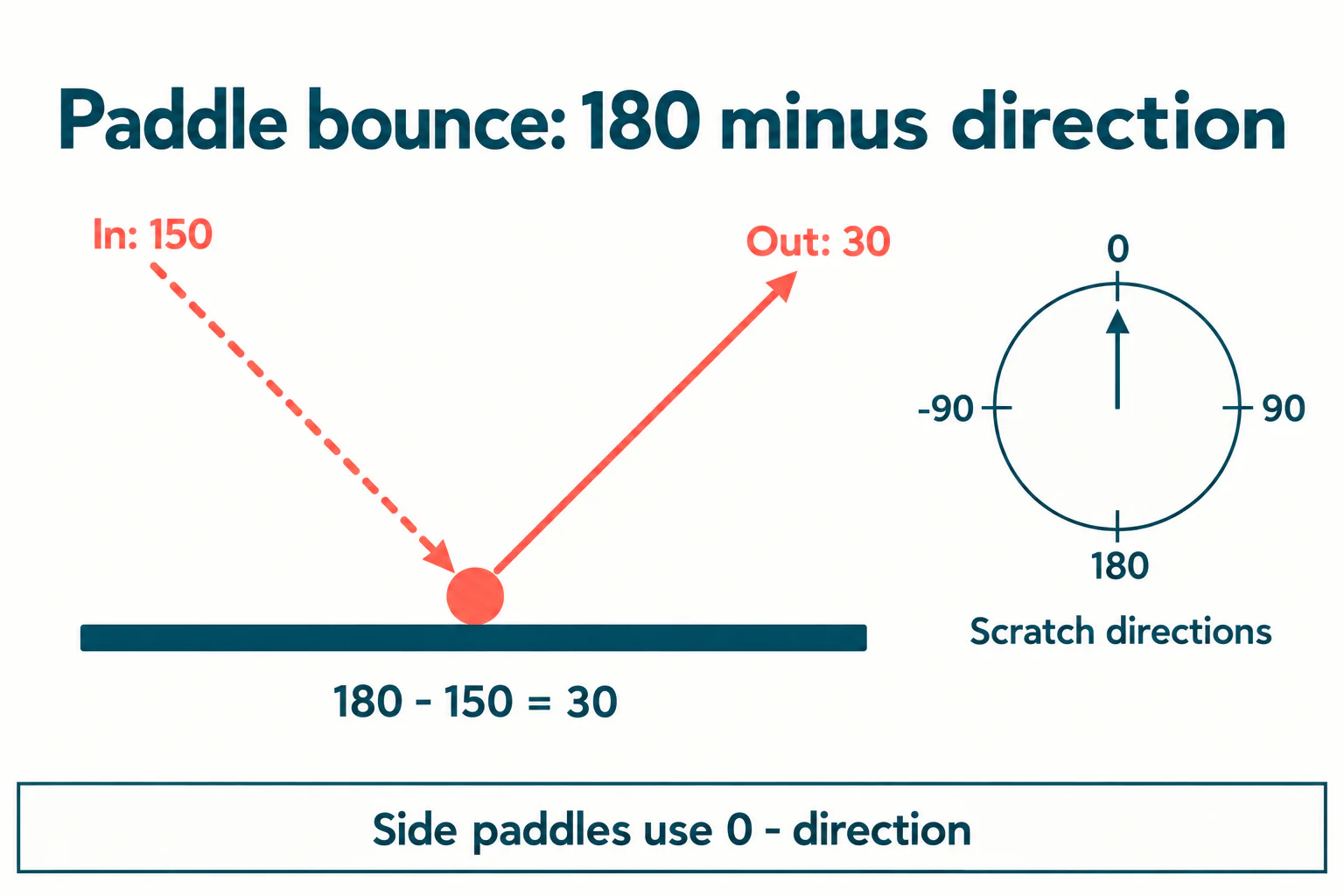
That last point matters for later. 180 minus direction reflects off a horizontal surface, such as a paddle at the bottom or top. For a vertical surface, such as a paddle on the left or right, the correct formula is point in direction ((0) - (direction)). Mixing them up sends the ball back toward the paddle it just hit.
The fix for a ball that sinks through the paddle
Play for a minute, sweeping the paddle quickly into the side of the ball, and sooner or later the ball wobbles inside the paddle and falls out of the bottom. Here is why. 180 minus direction is its own undo: 180 minus (180 minus 150) is 150 again. If the ball is still touching the paddle on the next frame, which happens whenever the paddle moves into it sideways, the second bounce turns it straight back down.
The fix is to bounce only when the ball is falling. Every downward direction in Scratch is bigger than 90 or smaller than -90, so the test is the size of the direction ignoring its sign. Change the if to:
if <<touching (Paddle)?> and <([abs] of (direction)) > (90)>> then
([abs] of ()) is in Operators; choose abs from its dropdown. After one bounce the ball is rising, its direction is between -90 and 90, and a second touch does nothing. The Scratch Wiki's own Pong script adds move (10) steps after the bounce instead, which lifts the ball clear when it lands on top of the paddle, but not when the paddle is pushed into its side.
Click the green flag: the ball should bounce off the paddle every time it lands on it, and never get stuck however you move the mouse.
Most children can copy the bounce. Explaining why it is 180 minus direction, and not 180, is the bit that turns copying into understanding, and it is where a teacher helps most. A free trial class with a Codeyoung teacher shows you where your child is and what they are ready for next, before you commit to anything.
Book a Free Trial →Step 4: add randomness so rallies never loop
With a fixed start of 135 and a perfect mirror bounce, every game plays the same path. Worse, two kinds of serve break the game completely, and they come from how if on edge, bounce is written.
In the Scratch 3.0 source code, the block keeps the ball's motion and reverses only the part pointing into the wall it hit. Hit the left or right wall and only the sideways part changes. So a ball moving at exactly 90 or -90 has no up-down part to begin with, and it bounces between the side walls forever without ever coming near the paddle. A ball at exactly 180 has the opposite problem: straight down, straight up off the paddle, straight down onto the same spot, for as long as the paddle stays put.
Nearly flat serves are almost as bad. At 10 steps a frame, here is how long the ball takes to drop 300 pixels, roughly from the top of the stage to the paddle:
| Serve direction | Pixels down per second | Time to drop 300 pixels |
|---|---|---|
| 180 (straight down) | 300 | 1.0 seconds |
| 150 | 260 | 1.2 seconds |
| 135 | 212 | 1.4 seconds |
| 100 | 52 | 5.8 seconds |
| 95 | 26 | 11.5 seconds |
| 91 | 5 | 57.3 seconds |
| 90 (flat) | 0 | Never |

This is why the serve range matters. The Scratch Wiki's Pong tutorial serves with point in direction (pick random (-180) to (180)). When both numbers are whole, Scratch's pick random gives a whole number, so that range has 361 equally likely results, and 42 of them are within 10 degrees of flat. About one serve in nine crawls, and two of them never arrive. And about half of all its serves start by flying upward, away from the player.
Two changes fix all of it. First, replace the serve with:
point in direction (pick random (150) to (210))
That always starts the ball within 30 degrees of straight down, toward the player. (210 is the same as -150; Scratch converts it automatically.) Second, change the paddle bounce so it adds a small random nudge and then keeps the angle playable:
point in direction (((180) - (direction)) + (pick random (-10) to (10)))if <(direction) > (60)> thenpoint in direction (60)if <(direction) < (-60)> thenpoint in direction (-60)
The nudge stops any rally repeating exactly, and breaks the straight-up, straight-down loop. The two if blocks stop the nudges adding up, over a long rally, into a nearly flat shot. There is a neat reason they are needed: because if on edge, bounce only reverses one part of the motion, the walls keep the ball's angle from vertical the same, so nothing else in the game would ever correct a flat angle.
One small quirk worth knowing. When the ball arrives at a side wall almost vertically, the block does not quite mirror it: the source forces the ball away from the wall at roughly 11 degrees or more, so it cannot slide down the wall. A ball arriving at -175 leaves at about 169, not 175. It only shows on near-vertical shots, and it helps.
Click the green flag several times: every serve should head down toward the paddle, and no two rallies should look the same.
Step 5: add a score and a losing zone
In Variables, click Make a Variable, name it score and choose For all sprites. Make a second one called speed the same way; step 6 uses it. Then add set [score] to (0) at the top of the ball's script and change [score] by (1) inside the paddle bounce. Our guide to building a score counter in Scratch explains why For all sprites is the safe choice and what goes wrong when a score is local.
For the losing zone, click the Stage, open the Backdrops tab, pick the rectangle tool, choose a bright red and draw a filled bar across the full width of the very bottom, about 15 pixels tall. Then add this to the ball's loop:
if <touching color [red]?> thenstop [all]
Set the colour in touching color ()? by clicking its swatch, choosing the eyedropper at the bottom of the picker and clicking the middle of the red bar on the stage. Clicking its edge can pick up a blended, anti-aliased pixel that is not quite the same red.
Colour sensing is less exact than it looks. Scratch's renderer compares only the top five bits of the red and green values and the top four bits of blue, so it can tell apart only about 16,000 colours, not 16 million. Any shade close to your red counts as red. Keep every other red and dark orange off the backdrop. The ball's own colours do not matter, because the block checks what is underneath the sprite, not the sprite itself.
Click the green flag and miss on purpose: the game should stop the moment the ball reaches the red bar. Each paddle hit should add 1 to the score.
Ending the whole game on one miss is harsh for younger players. Our guide to adding lives and a game over screen in Scratch shows how to give three chances instead, by resetting the ball to the centre and taking one life away.
Step 6: make the ball speed up
A game that never gets harder gets boring by the twentieth hit. Use the speed variable in three places:
- At the start:
set [speed] to (6) - In the loop: change
move (10) stepstomove (speed) steps - Inside the paddle bounce:
change [speed] by (0.5), thenif <(speed) > (14)> thenset [speed] to (14)
At 6 steps the ball covers 180 pixels a second, gentle enough for a first rally. Each hit adds half a step, so after 16 hits the speed reaches the cap of 14, or 420 pixels a second: the ball covers the 300 pixels from the top of the stage to the paddle in about 0.7 seconds. Without a cap the speed keeps climbing until the ball moves so far in one frame that it can jump over the paddle between two checks, because Scratch only tests touching at the ball's position each frame, not along the path between.
Here is the complete ball script with everything from steps 2 to 6 in place:
when green flag clickedset [score] to (0)set [speed] to (6)go to x: (0) y: (100)point in direction (pick random (150) to (210))wait (1) secondsforevermove (speed) stepsif on edge, bounceif <<touching (Paddle)?> and <([abs] of (direction)) > (90)>> thenpoint in direction (((180) - (direction)) + (pick random (-10) to (10)))if <(direction) > (60)> thenpoint in direction (60)if <(direction) < (-60)> thenpoint in direction (-60)change [score] by (1)change [speed] by (0.5)if <(speed) > (14)> thenset [speed] to (14)
if <touching color [red]?> thenstop [all]

wait (1) seconds before the loop gives the player a moment to find the paddle before the serve.Step 7: a 2-player version and a computer opponent
The easiest 2-player Pong in Scratch puts the second paddle at the top of the stage, because then the bounce maths does not change. Right-click the Paddle, choose duplicate, and rename the copy Paddle2. Give it set y to (150) and keys of its own, key (a) pressed? and key (d) pressed?, with the first paddle on the arrow keys from step 1.
Then, in the ball's loop, add a second bounce for the top paddle. The only change is the direction test: the top paddle should only bounce a ball that is rising, so its condition is <([abs] of (direction)) < (90)>. Draw a blue bar across the top of the backdrop as player 2's losing zone, and swap the single score for two variables, player 1 and player 2. When the ball touches red, player 2 scores; when it touches blue, player 1 scores; either way, send the ball back to go to x: (0) y: (0) and serve again, rather than stopping everything. To serve upward toward player 2, use pick random (-30) to (30).
If your child wants the classic arcade layout, with paddles on the left and right, everything turns sideways: the paddles use set y to (mouse y) or up and down keys, the losing zones are on the side walls, and the bounce becomes point in direction ((0) - (direction)), the vertical-wall formula from step 3. The left paddle should only bounce a ball moving left, a direction below 0, and the right paddle one moving right, above 0.
A computer paddle that can lose
The tempting computer player is one block: set x to ([x position] of (Ball)), using the of block from Sensing. It is also unbeatable, because the paddle is always exactly under the ball. A fair opponent moves toward the ball at a limited speed:
foreverif <([x position] of (Ball)) > ((x position) + (5))> thenchange x by (5)if <([x position] of (Ball)) < ((x position) - (5))> thenchange x by (-5)
The plus and minus 5 stop the paddle twitching when it is already in line with the ball. The 5 itself is the difficulty setting. The ball's sideways speed is its speed times how far its angle leans from vertical, and at speed 10 and the full 60-degree lean that is about 8.7 pixels a frame, faster than the computer's 5. So a quick, wide-angle shot late in a rally beats it, and slow, steep shots never do. That gives a child a real tactic to discover. Change the 5 to 4 for an easier opponent or 7 for a harder one.
Testing checklist: five bugs and their fixes
When something goes wrong, it is almost always one of these. Read the symptom first.
| Symptom | Cause | Fix |
|---|---|---|
| Ball wobbles inside the paddle, then falls through | 180 minus direction ran twice | Add <([abs] of (direction)) > (90)> to the paddle check |
| Ball bounces side to side and never comes down | Served at or near 90 or -90 | pick random (150) to (210) for the serve |
| Ball goes straight up and down on the same spot | Perfect mirror at exactly 180 | Add the pick random (-10) to (10) nudge |
| Game ends before the ball reaches the red bar | Something else on the backdrop is close to that red | Recolour it, and pick the colour from the middle of the bar |
| Ball flies back toward a side paddle it just hit | Used 180 minus direction on a vertical paddle | point in direction ((0) - (direction)) |
Where to take Pong next
- A best score that survives a reload. Scores reset every game. Keeping a top score between sessions needs a cloud variable, and our guide to saving a high score in Scratch explains the rules, including which accounts can use them.
- Multi-ball. After every 10 hits, add a second ball with
create clone of (myself). Each clone runs the same bounce script, which is a good test of whether the script is really general. Our guide to Scratch clones covers the parts that catch people out, especially variables that should belong to each ball. - Aim with the paddle. In the arcade original, where the ball strikes the paddle changes the angle. Replace the bounce with
point in direction (((x position) - ([x position] of (Paddle))) * (1)): hit the centre and the ball goes straight up, hit the end and it leaves at a wide angle. Keep the 60-degree limits.
Conclusion
Pong in Scratch is a paddle that copies mouse x, a ball that moves and runs if on edge, bounce, and one line of maths, point in direction ((180) - (direction)), that mirrors the ball off a flat paddle. The parts worth slowing down for are the ones a working game hides: the double bounce that sinks the ball through the paddle, the flat serve that if on edge, bounce can never correct, and the colour check that treats near-red as red. A child who can explain why each fix works has learned angles, conditions and debugging, not just a game.
If your child enjoyed building Pong, Codeyoung's Scratch coding classes take projects like this further with a teacher alongside, so a stuck ball becomes a lesson in angles instead of a reason to give up.
Codeyoung runs 1:1 live online classes for children aged 6 to 17, with a teacher who adapts the pace to your child rather than a fixed syllabus. The first class is free, so you can see how they respond before deciding.
Book a Free TrialSources checked 16 November 2026: the Scratch Wiki pages How to Make a Pong Game, If on Edge, Bounce, Point in Direction (), Direction (value), Touching Color ()? and Stage; the Scratch Foundation's scratch-vm source for if on edge, bounce and move steps, direction wrapping (rendered-target.js and math-util.js), pick random (scratch3_operators.js) and the 30 frames a second compatibility rate (runtime.js, switched on in scratch-gui's vm-manager-hoc.jsx); the colour comparison in scratch-render's RenderWebGL.js; and the Ball and Paddle sprite sizes from scratch-gui's sprite library file. Fall times are calculated from those formulas at 30 frames a second; a slow computer that drops frames will be slower.