
A Scratch lives counter is five blocks of work and two bugs. The five blocks take about four minutes. The two bugs are the reason a child comes back to you saying the game is broken, and both of them come from the same place: a forever loop in Scratch runs about 30 times every second, and a child counting lives has no reason to expect that.
So the first touch of an enemy does not cost one life. It costs every life the player has, in roughly a tenth of a second, and the screen flicks straight to nothing. This guide builds the counter properly, names both failures with the mechanism behind them, and gets a Game Over on screen that actually stays visible.
If your child has not built a score yet, start with our Scratch score counter walkthrough, which covers what a variable is and why its scope matters. This guide assumes that and goes after the thing a score never has to deal with: an end state.
What is a lives counter in Scratch?
It is one number that only ever goes down, plus a rule about what happens when it reaches zero. That second half is the part that makes it different from a score. A score can climb forever and the game carries on regardless. A lives counter exists to end something, which means it needs a check and a consequence attached to it.
Make the variable from the Variables category, call it lives, and choose For all sprites. There is one lives total in a game, and every bat, spike and falling rock has to be able to change the same one. The alternative, For this sprite only, gives every clone its own private copy, which is the single most common reason a counter looks like it is resetting itself for no reason.
Why does a child lose all three lives in one touch?
Because of what a forever loop actually is. The Scratch Wiki describes the timing precisely: "The loop will wait until the next frame after each iteration, provided there are blocks running in the project that require a yield. At 30 FPS this delay is approximately 1/30 sec."
Now read the script almost every child writes first:
- forever
- if touching Enemy then
- change lives by -1
Two sprites that have collided stay overlapping for far longer than a thirtieth of a second. A player cannot move away in under 33 milliseconds, and nothing in that script asks them to. So touching Enemy is still true on the next pass, and the next, and the next. One collision lasting a single second subtracts about 30 lives. With three lives, the game is over in roughly 0.1 seconds, which on screen looks like it ended the instant the sprites met.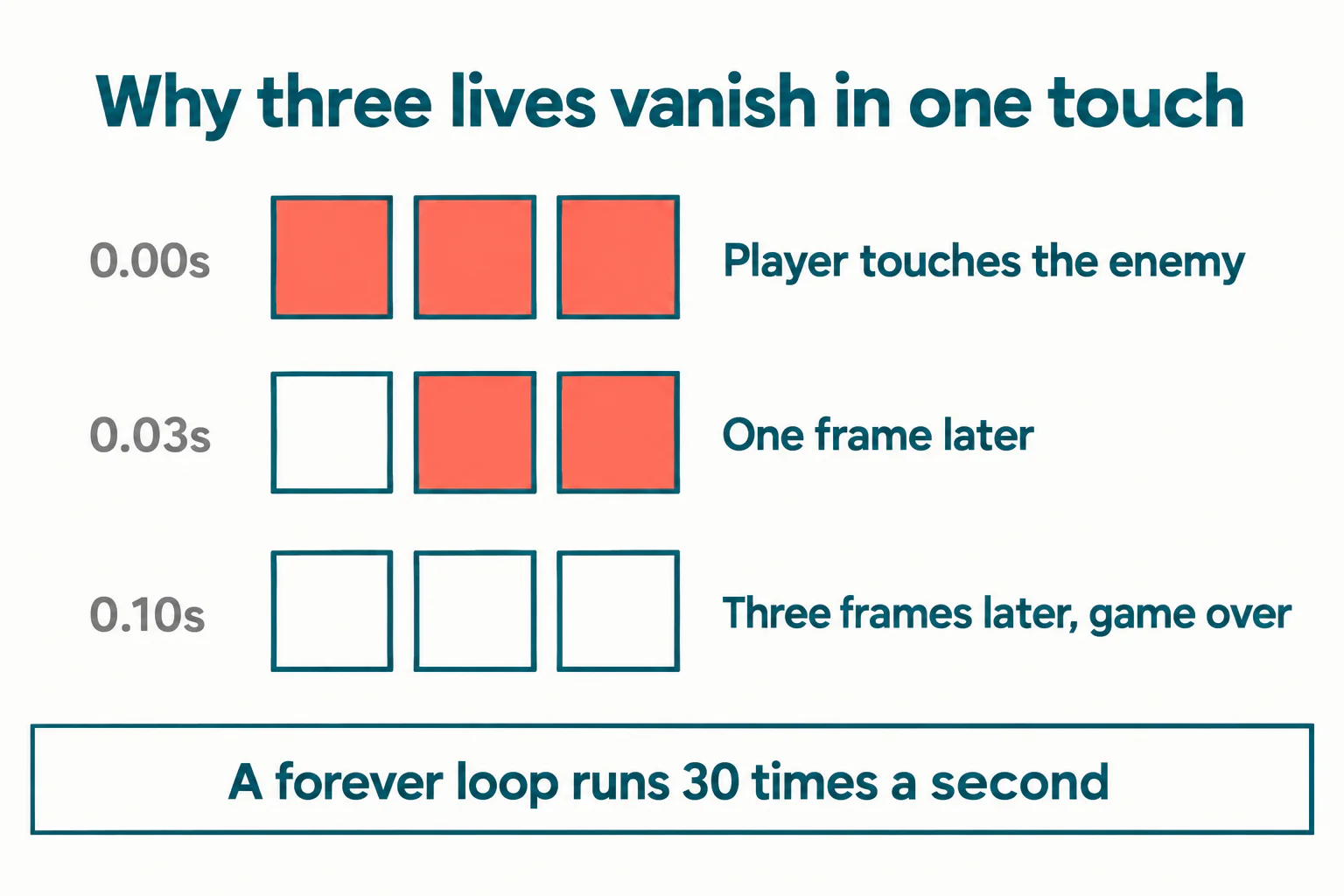
This matters for a reason beyond the bug. It is the first time most children meet the idea that a condition being true is not the same as an event happening once. A child who understands that goes on to debug half the problems in their next three projects without help.
How do you stop the drain?
Add one block directly underneath the subtraction: wait until not touching Enemy. The script now holds still at that line until the two sprites have genuinely separated, so the loop cannot reach the subtraction a second time from the same collision. One touch, one life.
Two other fixes work and are worth knowing, because which one you choose changes how the game feels:
- Wait until not touching. The player takes one hit and keeps standing where they are. Best for a platform game where being knocked back would be unfair.
- Move the player back to the start. Add go to x: 0 y: -120 after the subtraction. The sprites separate instantly, so the condition goes false on its own. Best for a maze.
- A short wait, around one second. Gives the classic flashing invulnerability window, and pairs well with a few repeats of hide and show.
What does not work is raising the number of lives. Thirty subtractions a second will eat ten lives as cheerfully as three, and a child who tries this learns the wrong lesson from it.
The five blocks that make a lives counter work
Here is the whole thing, with the two guards in place. Everything else is detail.
- when green flag clicked, so the game has a defined start.
- set lives to 3, which both starts the game and fixes the reset problem described below.
- forever, wrapping the detection.
- if touching Enemy then change lives by -1, the only line that costs the player anything.
- wait until not touching Enemy, the guard that makes one hit cost one life.
Then, inside the same forever loop and after the touching check, the end condition: if lives = 0 then show the Game Over state and stop. Use the = operator and compare against 0, not < 1. They behave identically here and the equals version is the one a child can read aloud.
Not sure whether your child is ready to move from following a tutorial to designing their own game logic? A free trial class with a Codeyoung teacher shows you exactly where they are and what they are ready for next, before you commit to anything.
Book a Free Trial →How do you show a Game Over without freezing it first?
This is the second bug, and it is sharper than the first because the code looks right. A child writes the end condition like this:
- if lives = 0 then
- stop all
- switch backdrop to Game Over
The backdrop never changes. The Scratch Wiki is exact about why: the stop block set to all"stops all scripts in the entire project" and "has the same behavior as clicking the stop sign." It is a cap block, which is why it has no notch on its underside, and nothing placed below it in a script will ever run. The backdrop switch is sitting in dead code.
Reverse the two lines. Switch the backdrop, or show a game over sprite, and only then stop all. The display happens, then everything halts with the message on screen.
There is a better pattern once a child is ready for it, and it is the reason broadcast blocks are worth learning around this point. Replace the stop with broadcast game over. Every sprite that needs to react can listen for it independently: the enemies hide, the player stops responding to keys, the backdrop changes, a final score appears. The player sprite stops being responsible for the whole ending, which is the first genuinely architectural decision most children make.
Note the third option on that dropdown too. stop other scripts in sprite is the only one of the three that is a stack block rather than a cap, so blocks below it do run. It is useful for killing a movement loop while an animation plays.
What breaks when the green flag is clicked again?
Scratch keeps variable values between runs. A game that ends with lives at 0 and no reset starts the next round at 0, so the player dies before they have moved. The child reports that the game only works once.
set lives to 3 under the green flag fixes it, which is why it is step 2 above rather than an afterthought. The same applies to everything else the ending touched: switch the backdrop back, show the sprites you hid, and send the player to their starting position. A reliable habit is to treat the green flag script as a list of every state the game can be left in, and undo all of it.
This is also the point where a lot of children discover their own ending by accident. Set lives to 1 temporarily while testing. Waiting for three deaths to check one line of code wastes a surprising amount of a child's patience, and deliberate shortcuts like this are a real part of debugging as a taught skill.
Where a lives counter goes next
Three extensions follow directly from what is already on screen, and none needs a new concept:
Show the lives, do not just count them. Tick the variable's checkbox for a readout, or hide it and use three sprites that hide one at a time. The second version is more work and reads far better.
Give a life back. A collectable that runs change lives by 1 turns a one-way counter into a resource the player manages, which changes the whole feel of a level.
Split lives from health. Health is a second variable that empties and then costs one life. This is where For this sprite only becomes correct rather than wrong, because each enemy clone genuinely does need its own health value.
If you want the order these ideas usually land in, the Scratch curriculum progression guide lays it out, and how to make a game on Scratch is a good complete project to put a lives counter inside.
Putting it together
A working lives counter is one global variable, a reset under the green flag, a subtraction inside the collision check, a wait until not touching guard, and an if lives = 0 ending that displays before it stops.
The two guards are where the learning is. Both exist because of timing rather than arithmetic, and a child who can explain why 30 frames a second breaks a naive counter has understood something that will save them hours in every project after this one. Let them hit the bug first, then fix it. It lands far better than being warned.
Codeyoung runs 1:1 live online classes for children aged 6 to 17, with a teacher who adapts the pace to your child rather than a fixed syllabus. The first class is free, so you can see how they respond before deciding.
Book a Free TrialSources: Scratch Wiki, Forever (block); Scratch Wiki, Stop () (block); block names and behaviour checked against Scratch 3 on 30 October 2026. Our Scratch classes for kids teach this progression in order.