
Two blocks animate a sprite in Scratch, and a child can have a character walking in about ninety seconds. The hard part arrives straight afterwards, when the walk looks like the character is twitching rather than moving. That is almost never a drawing problem. Scratch costumes each carry their own centre point, and when those centres do not line up the sprite jumps between frames.
For parents: this is a good moment to watch. Animation is the first thing in Scratch where a child's project looks obviously unfinished and the cause is invisible. Working out that the pictures are fine and the alignment is wrong is a real piece of debugging, and it is the kind of problem that builds the habit of looking for a cause rather than starting again.
This guide covers the two blocks, the number that controls speed, the centre problem and its second symptom, and why the order of the costume list is itself part of the animation.
What is a costume in Scratch?
A costume is one of the pictures a sprite can wear, and a sprite shows one at a time. Open the Costumes tab at the top left and you see the list for whichever sprite is selected, numbered from 1 downwards.
That list is the entire animation system. Scratch has no timeline, no keyframes and no tweening. Animation is switching pictures in order, exactly like a flip book, which means the quality of the result depends far more on the drawings and their alignment than on the code.
Three Looks blocks do the work.
| Block | What it does | Use it when |
|---|---|---|
switch costume to [name] | Jumps straight to one named costume | Setting a starting pose, or showing a specific state |
next costume | Moves one down the list, and wraps from the last back to the first | Running a cycle |
costume [number] | Reports which costume is showing | Checking state in an if block |
How do you animate a sprite?
A loop, a next costume and a wait. That is the whole technique.
- Select the sprite and open the Costumes tab to check it has more than one costume. The cat has two, which is enough to test with.
- Back in the Code tab, drag
when green flag clickedfrom Events. - Add
switch costume toand pick the pose the animation should start from. Skipping this is why an animation sometimes starts mid-stride. - Add a
foreverloop from Control. - Inside the loop, put
next costumefrom Looks. - Underneath it, still inside the loop, put
wait 0.05 seconds. The character should now walk on the spot.
If the character is a flickering blur, the wait is missing. If it looks like a slideshow, the wait is too long.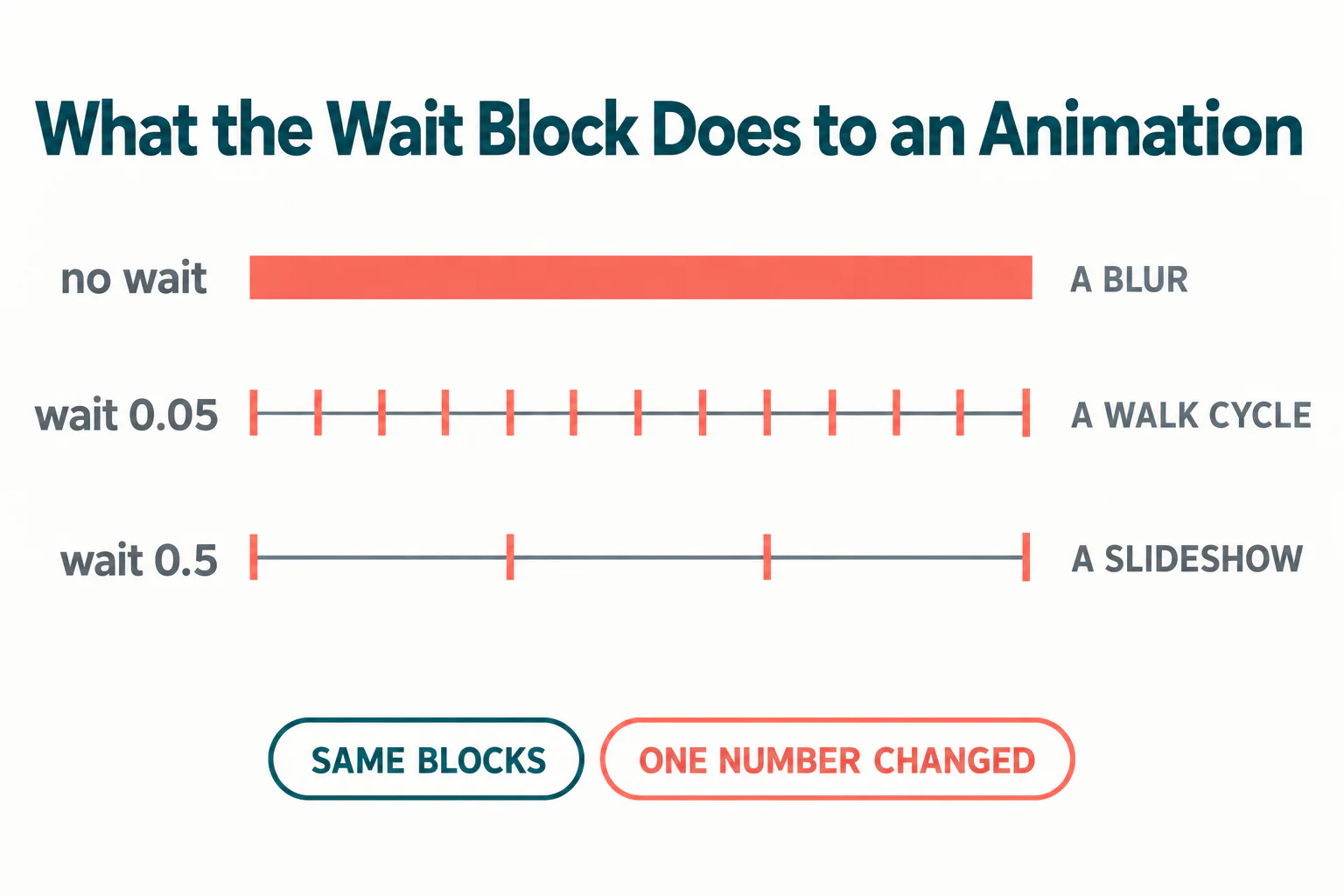
Have them try 0.02, 0.05, 0.1 and 0.5 and watch each one. Guessing a value is a weaker lesson than running four and choosing, and the difference between 0.05 and 0.1 is genuinely visible rather than theoretical.
Why does your animation look jumpy?
Because each costume has its own centre, and the centres do not match. A sprite's costume centre, also called the rotation centre, is the point Scratch treats as the middle of the sprite, and by default it is the centre of the rectangle that bounds that particular drawing.
That default is the trap. Draw a character standing with arms down, and the bounding rectangle is narrow. Draw the same character with one arm raised, and the rectangle is taller and wider, so its centre sits somewhere else on the body. Scratch lines up the two costumes by their centres, so the character appears to shift position between frames even though you drew it in the same place both times.
The fix, and it is mostly about how you make the costumes
Build each new frame from the previous one rather than from a blank canvas.
- In the Costumes tab, right-click the costume you have and choose duplicate.
- Edit the duplicate: move an arm, bend a leg, change what needs to change.
- Do not drag the whole drawing around the canvas while editing, because that is what moves it relative to the centre.
- Repeat for each frame, always duplicating the last good one.
In the paint editor the costume centre is shown as a crosshair at the middle of the canvas, so you can check alignment by eye: the same body part should sit on the crosshair in every costume. Picking a fixed reference point, usually between the feet or at the hips, and keeping it on the crosshair in all frames is the single habit that fixes this permanently.
One setting, two problems that look unrelated
The costume centre is not only used for positioning. When a sprite changes direction or size, the centre of rotation and scaling is the costume centre. So the same wrong setting produces a second symptom that looks like a completely different bug.
If a child says their sprite "swings round in a big circle" when they use turn 15 degrees, the centre is sitting off to one side of the drawing rather than inside it. The sprite is rotating correctly around its centre; the centre is just in the wrong place. The same applies to set size to, where a sprite with an off-centre point appears to slide as it grows.
Being able to connect two unlike symptoms to one cause is a genuinely advanced debugging move, and it is worth naming out loud when it happens. We wrote about building that habit deliberately in debugging as a taught skill.
Not sure which level your child should start at? A free trial class with a Codeyoung teacher shows you exactly where they are and what they are ready for next, before you commit to anything.
Book a Free Trial →The costume list order is part of the animation
next costume moves one place down the list, and when it reaches the last costume it loops back to the first. That wrap is what makes a cycle run forever with no extra code, and it is also a trap.
Suppose a sprite has five costumes: a standing pose at position 1, then four walking frames. A forever [next costume] loop will run standing, walk, walk, walk, walk, standing, walk, and the character will appear to stumble once per cycle. Nothing is wrong with the code. The standing pose is simply inside the loop because of where it sits in the list.
Two ways out, and children should know both:
- Reorder the list by dragging costumes, so every costume in the cycle belongs to the cycle. Put non-cycle poses such as standing or jumping at the end.
- Stop using
next costumeand switch to named costumes inside arepeat, which is more typing but survives somebody adding a costume later.
The second option matters more than it sounds. A cycle built on next costume breaks silently the moment anyone adds a sixth costume, which in a shared or long-running project will happen.
Making the walk actually move
Animating on the spot and moving across the stage are separate jobs, and combining them is the natural next step.
- Inside the same loop, add
move 5 stepsnext tonext costume. - Add
if on edge, bounceso the character does not vanish. - Set the rotation style to left-right in the sprite panel, otherwise bouncing turns the character upside down.
Match the step size to the wait
Match the move distance to the wait. A character that changes costume every 0.05 seconds but moves 20 steps each time appears to skate, because the feet cycle far slower than the body travels. Smaller steps with the same wait look like walking. That relationship between two numbers is worth letting a child discover by changing one at a time.
Where this goes next
Costume switching is also how you build a health bar, a character selector or a door that opens, because any object with states is just a sprite with one costume per state and an if deciding which to show. Combined with messages between sprites, which we covered in how to use broadcast in Scratch, and a variable to hold the state, that is most of what a finished game needs. If your child is still assembling their first one, how to make a game on Scratch covers the groundwork.
The short version
Animating in Scratch is a loop, a next costume and a wait, and the wait value is what makes it look like walking rather than flickering. When the result looks jumpy the drawings are usually fine and the costume centres are not: each costume has its own, it defaults to the centre of that drawing's bounding box, and duplicating the previous costume rather than starting fresh keeps them aligned.
Remember that the centre is also the pivot for turning and scaling, so a sprite that swings in an arc has the same underlying cause. And check the order of the costume list, because next costume wraps round and will happily include a standing pose in the middle of a walk.
Codeyoung runs 1:1 live online classes for children aged 6 to 17, with a teacher who adapts the pace to your child rather than a fixed syllabus. The first class is free, so you can see how they respond before deciding.
Book a Free TrialBlock behaviour and costume centre details verified against the Scratch Wiki and the Scratch Foundation on 22 October 2026. Our Scratch coding classes for kids teach animation alongside the paint editor, because the drawing and the code are the same problem here.