
A Scratch project with six sprites and no messages is six small programs that cannot talk to each other. Everything happens when the green flag is clicked, nothing happens in a sequence, and the first time a child tries to build a game with levels the whole thing falls apart. Broadcast in Scratch is the block that fixes that, and it is the point where a child stops writing scripts and starts writing a program.
For parents: this is a genuine milestone rather than another block to learn. Coordinating several independent things that all react to one event is the same idea behind events in JavaScript, signals in Python and messages between services in professional software. A child who understands broadcast has met that concept years before they meet the vocabulary.
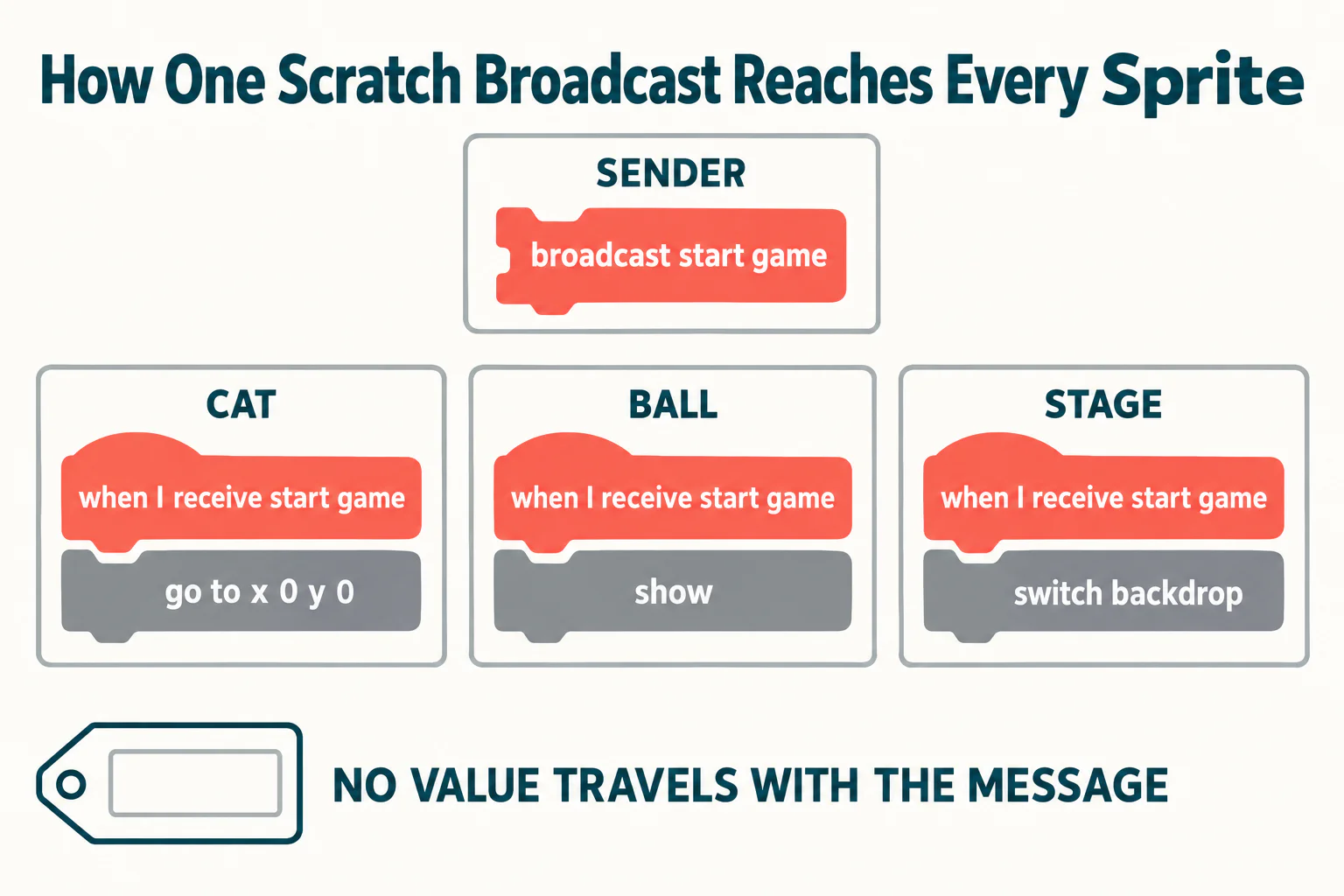
Two parts of how broadcast works surprise almost everybody, including adults who have used it for years. A message carries no information at all, and sending the same message twice in quick succession silently restarts the script that was listening. Both are covered below, with what to do instead.
What does broadcast do in Scratch?
It sends a named message that every sprite and the stage hears at the same moment. The Scratch Wiki puts it plainly: a broadcast is "a message that is sent through the Scratch program, activating scripts with the matching hat blocks". Any script anywhere in the project that begins with a matching when I receive block starts running.
Three blocks do the work, and all three live in the yellow Events category.
| Block | What it does | Use it when |
|---|---|---|
broadcast [message] | Sends the message and carries straight on to the next block | The sender has nothing to wait for |
broadcast [message] and wait | Sends the message and pauses until every listening script has finished | The next step depends on the receivers being done |
when I receive [message] | A hat block that starts a script when the message is heard | On every sprite that needs to react |
How do you send your first broadcast?
Six steps, and a child can follow them unaided. The expected result is stated at each stage so they know it worked.
- Click the sprite that should send the message.
- Open the Events category, the yellow one, and drag a
broadcastblock into the code area. - Click the dropdown arrow on the block and choose New message.
- Type a name that says what happened, not what should happen next.
player scoredis a good name.make the ball hideis a poor one, because two years later a second sprite will want to react to the same event differently. - Click a different sprite, open Events again, and drag out
when I receive. Pick your message from its dropdown. Snap one action block underneath, such ashide. - Click the
broadcastblock directly to fire it by hand. The second sprite should react at once. If nothing happens, the two blocks are almost certainly set to different messages.
Naming matters more than it looks. A message name describes an event that has happened, which lets any number of sprites decide for themselves how to respond. Children who name messages after one sprite's reaction end up with twelve nearly identical messages and a project nobody can edit.
A broadcast carries no information
This is the part that costs the most time, and it is almost never mentioned in tutorials. Broadcasts cannot carry values. A message has a name and nothing else. There is no slot for a number, no second field, no way to attach the score or the level or which sprite was touched.
So a child who builds broadcast [player scored 5] has not sent the number five anywhere. They have created a message whose name happens to contain the character 5, and if the next score is 10 they will create a second message, then a third. Projects built this way accumulate dozens of messages and still cannot add up a score.
The workaround, and it is the standard one
Set a variable first, then broadcast. The variable must be available to all sprites so the receiver can read it.
- Make a variable using For all sprites, for example
points this hit. - In the sending sprite:
set points this hit to 5, thenbroadcast player scored. - In the receiving sprite:
when I receive player scored, thenchange score by points this hit.
Set the variable before the broadcast, never after. The receiving script may start running the instant the message is sent, so a variable set on the following line can be read too late. Variable scope is the other half of this topic and it has its own trap with clones, which we covered in detail in how to make a score counter in Scratch.
broadcast versus broadcast and wait
Both blocks send the identical message to the identical listeners. The only difference is what the sender does next. Plain broadcast moves to its next block immediately. broadcast and wait stops and does nothing until every script under a matching when I receive block has finished, then continues.
A worked case makes the choice obvious. Suppose the stage should announce a level, wait for three sprites to move into position, and only then start the timer.
- With
broadcast set up levelthe timer starts immediately, while the sprites are still moving. The game begins before the board is ready. - With
broadcast set up level and waitthe stage pauses until all three sprites have finished moving, then starts the timer. Correct every time, with no guesswork about how long to wait.
Children reach for a wait 1 seconds block to solve this, which works on their laptop and fails on a slower one. The waiting version of broadcast is the honest fix because it waits for the actual work rather than for a guessed duration. If you are adding a timer to a project, making a timer in Scratch walks through the timing blocks themselves.
Why does your script restart and never finish?
Because a second message interrupts the first. The Scratch Wiki is explicit: "If the same message is sent again while the script is still running, the script will restart without reaching the blocks at the end."
That behaviour produces one of the hardest bugs a young coder meets, because there is no error, no red glow and no message. Consider a level-setup script that switches the backdrop, waits two seconds, shows the boss and sets lives to three. If anything broadcasts next level again during that two-second wait, the script jumps back to the top. The boss never appears and lives are never set. The project simply sits there looking broken.
Three habits prevent it. Keep wait blocks out of receiving scripts wherever you can. Guard a message that must not re-fire with a variable, for example setting level loading to 1 and checking it before broadcasting again. And put the blocks that matter most, such as setting lives, near the top of the script rather than the bottom, so an interruption costs less. Reading a project for this kind of silent failure is a skill worth teaching directly, which is why we wrote debugging as a taught skill.
Do clones receive broadcasts?
Yes, all of them, at once. If a sprite holding a when I receive block has clones, the code under that block runs for the original sprite and for every clone it has made. Nothing extra is needed to make that happen.
That is genuinely useful. One broadcast game over can hide forty falling apples, stop every enemy and reset the player, with no list of clones to manage and no loop to write. It is also the cleanest way to delete clones: give every clone a when I receive game over script ending in delete this clone.
One caution. Scratch runs broadcasts for sprites and clones in the order they are layered front to back, and the Wiki describes that ordering as implementation dependent and says it should not be relied on in projects. So never build a game whose logic depends on which clone reacts first. If order matters, number the clones with a variable set at creation and have each one check its own number.
Broadcast in a real game
A catching game with a score, three lives and two levels needs about four messages, and no more.
| Message | Sent by | Who listens, and what they do |
|---|---|---|
start game | Stage, after the green flag | Basket moves to centre, apples begin falling, score resets to 0 |
apple caught | The apple clone that touched the basket | Stage adds to the score and checks whether the level target is met |
apple missed | The apple clone touching the floor | Stage removes a life and checks whether lives have reached 0 |
game over | Stage, when lives reach 0 | Every apple clone deletes itself, basket hides, final score shows |
Why the stage should do the deciding
Notice that every message is named after something that happened, and that the stage does all the deciding. Sprites report events, one script decides what they mean. That single rule keeps a project readable as it grows, and it is the same separation that professional programs use. If your child is still building their first game, how to make a game on Scratch covers the groundwork these messages sit on top of.
Not sure which level your child should start at? A free trial class with a Codeyoung teacher shows you exactly where they are and what they are ready for next, before you commit to anything.
Book a Free Trial →When a broadcast seems not to work
Work down this list in order. In our experience the first item accounts for most cases.
- The two message names are different. Scratch will not warn you. Open both dropdowns and confirm they show the same entry rather than two similar ones.
- The receiving script is on the wrong sprite. A
when I receiveblock sitting on the sender does fire, but if you expected a different sprite to move, nothing visible happens. - The message fires before the listener exists. A clone created after the broadcast was sent never hears it. Broadcasts are not stored and replayed.
- A second broadcast is restarting the script. Add a temporary
sayblock as the final block. If it never speaks, the script is being interrupted. - The variable was set after the broadcast, not before. The receiver read the old value.
- The sprite is hidden or off-screen. The script ran correctly and you cannot see the result.
What to try next
Once messages are comfortable, the natural next projects are a level system, a pause menu and a high-score display, all three of which need broadcast and a variable working together. Children who are confident with both are usually ready to think about text languages, and when a child is ready to leave Scratch sets out the signals worth watching for.
The short version
Broadcast is how separate parts of a Scratch project agree on what is happening. Name messages after events, set any variable the receiver needs before sending, and use broadcast and wait whenever the next step depends on the listeners finishing. Remember that a message carries no data and that a repeat message restarts whatever was listening, because those two facts explain most broadcast bugs a child will ever hit.
It is also the moment a child's projects stop being one script long. That is worth noticing when it happens.
Codeyoung runs 1:1 live online classes for children aged 6 to 17, with a teacher who adapts the pace to your child rather than a fixed syllabus. The first class is free, so you can see how they respond before deciding.
Book a Free TrialBlock behaviour verified against the Scratch Wiki broadcast documentation and the Scratch Foundation on 21 October 2026. Our Scratch coding classes for kids teach messages and variables together, because most projects need both at once.