
Before a child's first coding class, most parents ask what computer to buy. The honest answer is uncomfortable for anyone selling computers: for the first two or three years, almost nothing. Scratch's own published requirement is a browser released in 2017, and the Scratch Foundation lists ChromeOS as a supported system even for the downloadable editor.
That is the gap worth knowing about. Retail advice and most buying guides describe a machine suitable for the hobby a child might have in year four, and families spend accordingly at the start. The requirements below come from the publishers themselves, checked on 19 October 2026, and they split cleanly into two tiers: the one almost any device clears, and the one that genuinely asks for a real computer.
What does a child actually need to start coding?
A browser, a stable internet connection, a keyboard and mouse or trackpad, and headphones with a microphone for a live class. That is the whole list for Scratch, block coding and browser-based Python, which covers the first several years of a typical pathway.
The two items parents underweight are both about the class rather than the code. A wired or well-placed wireless connection matters more than the processor, because a live 1:1 lesson is a video call with screen sharing. And a cheap headset with a microphone removes most of the friction in an online class, because built-in laptop microphones pick up the room and children end up repeating themselves.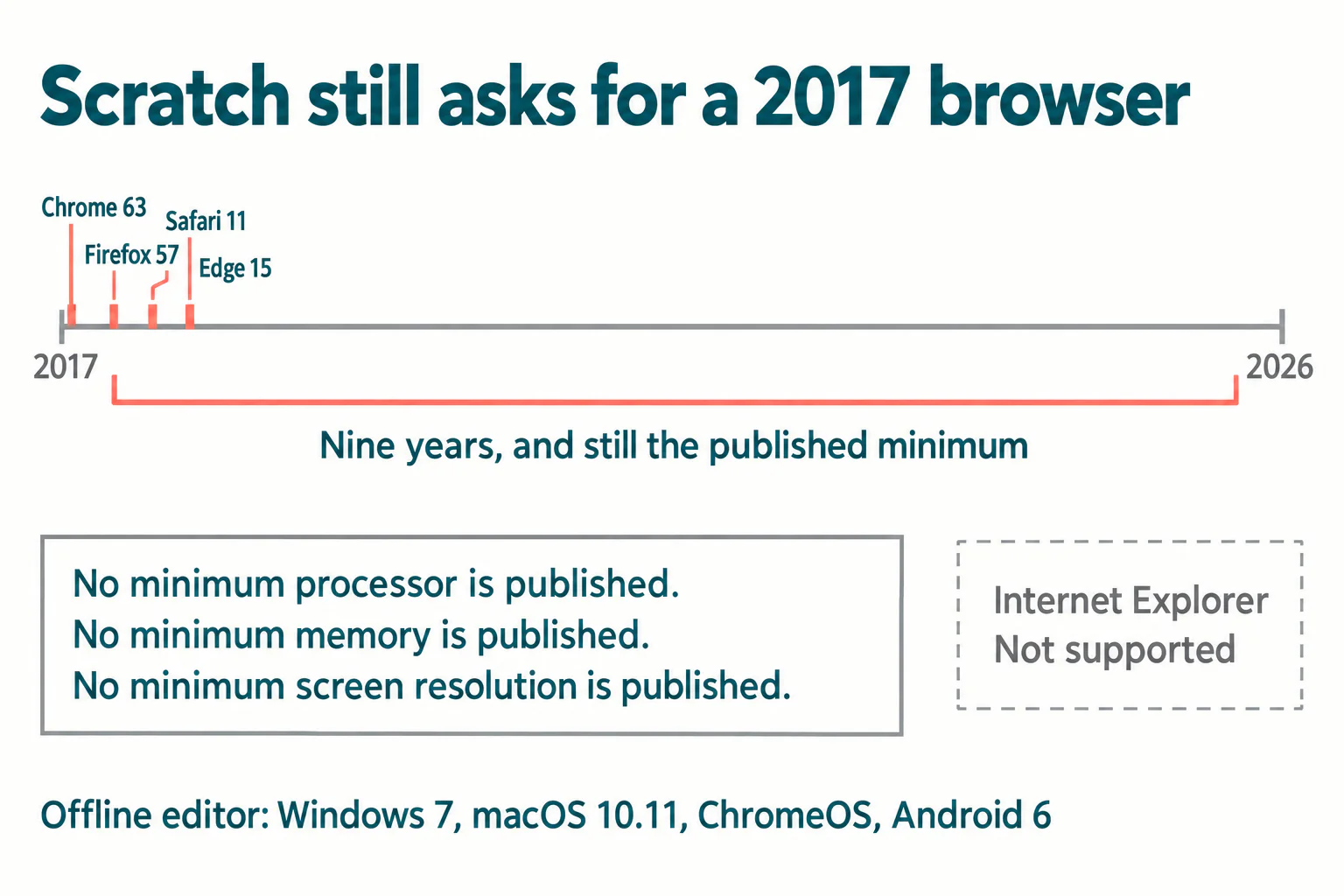
Scratch's official requirements, in full
Scratch 3 runs in the browser, and the Scratch Foundation publishes the supported versions explicitly. The current release is 3.32.1.
| Browser | Scratch minimum | That version shipped |
|---|---|---|
| Chrome, including mobile Chrome | 63 or higher | 6 December 2017 |
| Firefox | 57 or higher | 14 November 2017 |
| Safari, including mobile Safari | 11 or higher | 19 September 2017 |
| Edge | 15 or higher | 2017 |
| Internet Explorer | Not supported at any version | |
For the downloadable offline editor, the supported systems are Windows 7 and above, macOS 10.11 and above, ChromeOS, and Android 6.0 and above.
Read that list twice, because of what is missing from it. Scratch publishes no minimum processor, no minimum RAM and no minimum screen resolution. Software that needs those things says so. The absence is the specification.
Where the requirement genuinely rises
It would be dishonest to stop there and imply a nine-year-old laptop carries a child forever. Three steps up the pathway do ask for more, and it is worth knowing which one your child is heading towards before you buy anything.
Local Python, which needs an installation rather than a machine
Python itself is light, and browser-based editors need nothing beyond the browser already discussed. The change is administrative rather than technical: installing Python and an editor needs a system where you are allowed to install software. This is where a locked-down school Chromebook becomes the obstacle, not the hardware. A home Chromebook can run Linux and Python, though setting that up is a parent job rather than a child one.
Roblox Studio and Minecraft modding, the first real step
Roblox publishes Studio's requirements directly: minimum Windows 10 or macOS 10.14 with 3 GB of RAM and a resolution of 1600×900 or higher, with Windows 11 or macOS 14 and above and 8 GB of RAM recommended. Notably, Roblox publishes no processor or graphics card requirement for Studio at all.
Two things follow. If Roblox or Minecraft modding is the destination, you need a Windows or Mac machine, and a Chromebook will not do it. And if you are buying for that destination, 8 GB of RAM is the number that matters, not a graphics card nobody has asked for.
Video, 3D and machine learning work
Editing video of a finished project, rendering 3D, or training models locally are the genuinely demanding activities, and they usually arrive with a different hobby attached. By the time a child reaches them they will tell you what they need, and the purchase can be made against a real requirement rather than a guess.
Not sure which level your child should start at? A free trial class with a Codeyoung teacher shows you exactly where they are and what they are ready for next, before you commit to anything.
Book a Free Trial →Is a Chromebook enough?
For Scratch, block coding and browser Python, yes, and the Scratch Foundation's own support list says so by naming ChromeOS alongside Windows and macOS. A Chromebook is a reasonable first machine for a child starting at ages six to ten.
Its ceiling is specific and easy to check in advance: software that only installs on Windows or macOS. That means Roblox Studio and Java-edition Minecraft modding are out, and some course-specific tools may be too. The question to ask a provider is not "will a Chromebook work" but "does any software in this course install locally". That is answerable in one sentence and saves a return.
Can a child learn to code on a tablet?
Technically yes, and in practice only for a while. Scratch supports mobile Chrome and mobile Safari, and the offline editor supports Android 6.0 and above, so a tablet genuinely runs it.
The problems are physical rather than computational. Dragging blocks into precise positions with a finger is harder than with a mouse, and children blame themselves for the resulting misplacement. Without a keyboard, any typed language becomes an exercise in patience. A tablet is a fine way to find out whether a child enjoys this. It is a poor place to spend a second year, and adding a cheap keyboard and mouse extends it considerably.
What to buy, and when to wait
The pattern worth following is to buy against the stage your child is actually at, and to upgrade when a specific piece of software asks you to.
- Starting out, ages six to ten: use what you already own. If it runs a current browser, it runs Scratch. Spend on headphones with a microphone and on fixing the internet connection instead.
- Committed, and heading for Roblox or Minecraft: a Windows or Mac machine with 8 GB of RAM, which is Roblox's own recommended figure. Screen size helps more than speed, because block editors and code windows are wide.
- Still unsure whether it will stick: wait. A trial class and a borrowed laptop answer the question for nothing, and the answer changes what you should buy.
Deliberately absent from that list: prices. Hardware pricing moves monthly and any figure written here would be wrong by the time you read it, so the requirements above are stated as requirements and left for you to shop against. For the separate question of what classes cost, our guide to how much online coding classes cost covers that properly, and our 2026 tech gift guide is the better read if you are buying for a birthday or the holidays.
If you are still deciding what your child should learn first, block coding explains the starting point, the Scratch programming guide covers the platform in detail, and Scratch versus Python sets out when the move to typed code usually makes sense. Codeyoung's online coding classes for kids run in the browser, so the hardware question rarely comes up at all.
Conclusion
Scratch asks for a browser from 2017 and names no processor, no RAM and no resolution. Roblox Studio asks for Windows 10 or macOS 10.14, 3 GB of RAM, and recommends 8 GB. Those two published specifications are the whole decision, and almost every family faces the first one for years before the second.
So check what the software your child will actually open this term requires, buy for that, and put the difference into a headset and a better connection. A machine bought for stage four sits idle through stages one to three, and by the time stage four arrives it is three years old.
Codeyoung runs 1:1 live online classes for children aged 6 to 17, with a teacher who adapts the pace to your child rather than a fixed syllabus. The first class is free, so you can see how they respond before deciding.
Book a Free TrialSources checked 19 October 2026:Scratch system requirements · Roblox Studio setup and requirements · Google Chrome 63 stable release · Mozilla, Firefox 57 release notes