
Blooket's question editor gives you four answer boxes, and almost every guide on how to make a Blooket set tells you to fill them. You do not have to. Blooket accepts between two and four options, and a meta-analysis of 80 years of testing research found that three options are optimal: the third wrong answer rarely earns its place, and dropping it lets children answer more questions in the same ten minutes.
That is the one change to how you write questions that this guide argues for. Everything else is procedure, taken from Blooket's own help centre this week: building the set, importing from a spreadsheet or Quizlet, choosing live play or homework, the host settings worth changing, and what the free plan shows you in the report afterwards.
Key Takeaways
- A Blooket question set is built once and then played in any mode, live or as homework. The set is the work; the game is a setting.
- New sets are Public by default. Switch to Private before you add anything about your own class.
- Spreadsheet import wants the correct answer as a number from 1 to 4, not the answer text.
- Quizlet import makes your terms the answers and your definitions the questions, unless you tick Flip.
- Write each wrong answer from a real student mistake. Three good options beat four with a filler.
- On the free plan, the report tells you which questions were missed. Seeing which wrong answer each child picked needs Blooket Plus.
What you need before you make a Blooket set
A free teacher account and a question list. Blooket's own answer to whether it is free is that the essential features are: you can create an unlimited number of question sets and host a live game for up to 60 players on the free plan, which Blooket calls Starter. Plus raises the live cap to 300, except in Racing and the team modes.
Your students need nothing. Blooket states that players do not need an account for live games, and homework links work for anyone who has them. They join at play.blooket.com with a Game ID, by scanning a QR code, or through a join link you paste into your class page.
Decide one thing before you open the editor: what the set is for. A ten-question set reviewed live on Friday and a 40-question set assigned for a fortnight of homework are different objects, and the rest of this guide turns on that choice.
How to make a Blooket set from scratch
The manual route takes about a minute per question once you have the content ready. These steps follow Blooket's own guide to creating a question set.
- Select Create from your dashboard to open the Set Creator page.
- Add a title and a short description. Blooket suggests including the grade level and topic, which also makes the set easier for you to find in a year's time.
- Add a cover image if you like. It is optional and only helps you spot the set in a list.
- Choose Public or Private. Public is the default. Public sets can be found and shared by other users; private sets are visible only to you but can still be hosted live and assigned as homework. You can change this later.
- Select Create, then Add Question.
- Type the question and its answers, and mark the correct one. You can mark more than one option as correct if the question genuinely has two right answers.
- Select Save in the top right of the question box, then repeat for the next question.
Two small things save trouble. For a true or false question, put True in the first answer and False in the second, leave the other two blank, and untick Random Order so True always sits on the left; that is Blooket's own recommendation. And before you host anything, open the set's page and use Show Answers to read every question once with the key visible. A wrongly marked answer is far easier to fix before 28 children have been told they are wrong.
Question types, images and time limits
Blooket has two question types, and the second is the one most teachers never switch on.
Multiple Choice is the default. Each question needs question text and between two and four answer options, with at least one marked correct.
Typing Answer makes the student produce the answer rather than recognise it. You pick it from the question type dropdown, enter the correct answer, then choose how strictly Blooket matches it:
- Is exactly requires the same spelling, spacing and punctuation. Use it for a spelling test, a chemical symbol, or a number. For "What is the chemical symbol for sodium?" you want Na and nothing else.
- Contains accepts any answer that includes your word or phrase. Use it when children may phrase things differently. For "What does a plant need from the air to make its food?" a Contains match on "carbon dioxide" accepts "carbon dioxide" and "it takes in carbon dioxide" alike.
Typing answers take longer, and that is their value. Choosing from four options hands a child four cues before they have recalled anything; typing removes them. A set that mixes mostly multiple choice with a few typed questions on the facts that matter most is a good default.
Images and media. Blooket's question types guide splits this by plan. Every account can attach an image or an equation to the question itself, using the image icon to upload your own picture or browse the gallery, and an equation editor that takes LaTeX. Images and equations inside the answer options, and audio clips you record or upload, are listed as Plus features. For a maths set on the free plan, that means the diagram goes in the question and the options stay as text.
Time limits. Timing belongs partly to the question and partly to the game. Blooket's spreadsheet template carries a time limit for each question, and in Classic, the synced mode where everyone sees the same question at once, each question runs on a timer that the host can cut short with Skip. Most other modes are self-paced, and the game itself ends on a clock or a score goal that you choose when you host.
Four ways to get questions into a set
Typing every question by hand is only one route, and for a set of 30 or more it is the slowest.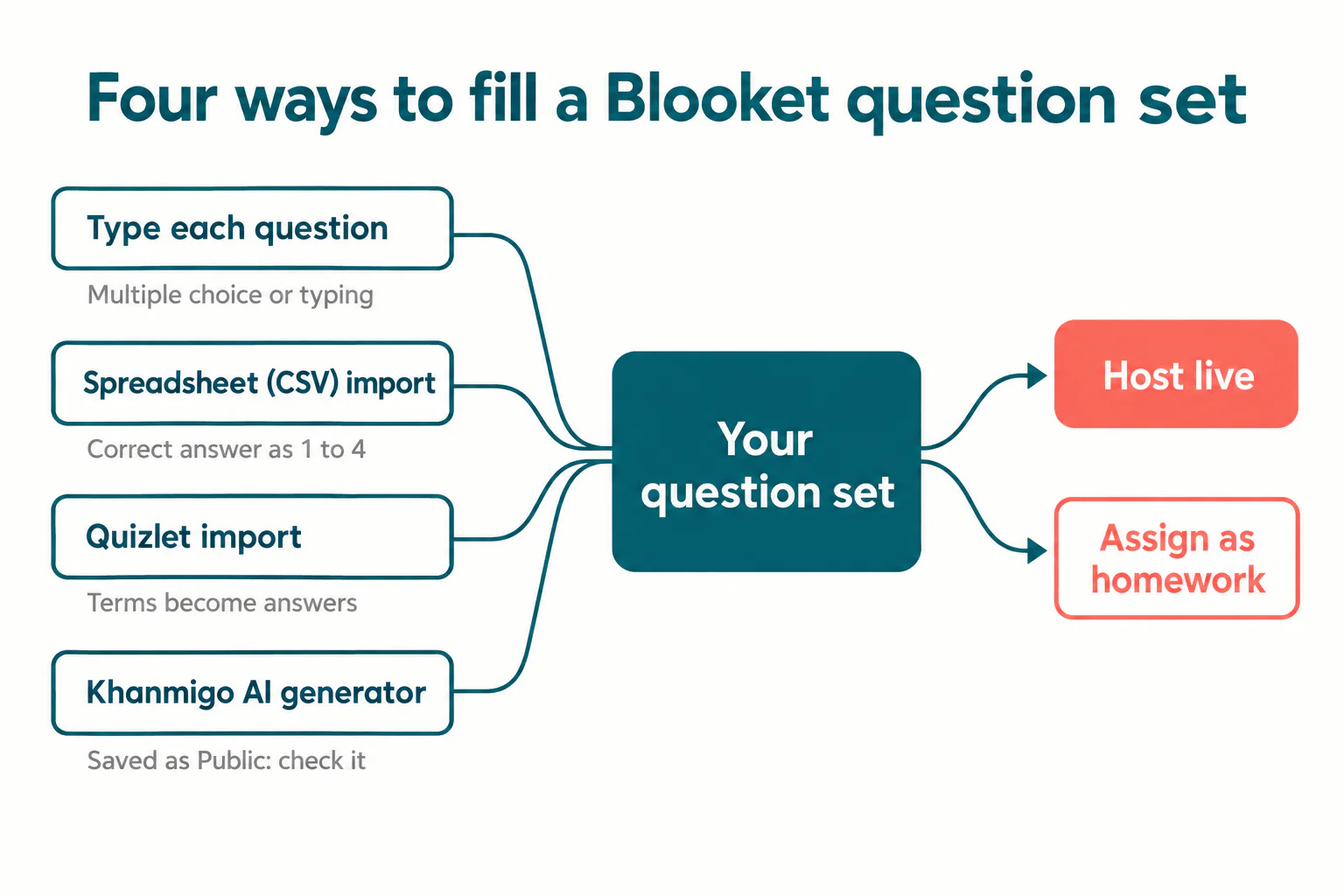
Spreadsheet (CSV) import
Choose CSV Import on the Set Creator page for a new set, or Spreadsheet Import on the Set Edit page to add to an existing one. Blooket offers its template as a Google Sheets copy or an Excel download. Three rules from Blooket's guide catch most first attempts:
- Do not edit the coloured (blue or grey) cells. Fill in questions, answers and time limits around them.
- The Correct Answer(s) column takes numbers only: 1, 2, 3 or 4, matching the column where the right answer sits. If the answer to "What's 3+3?" is in the Answer 2 column, you type 2. For two correct answers, separate the numbers with a comma.
- To make a row a Typing Answer question, type typing in column J. Answers you enter are imported as "is exactly" matches, so switch any to Contains afterwards if needed.
Save the sheet as a .csv file, upload it, and Blooket takes you straight to the Set Edit page. This is the best route if your questions already live in a scheme of work or a shared department document.
Quizlet import
Choose Quizlet Import, then find your set through Your Quizlet or Search Quizlet. In Quizlet, open the set from Your library, use the three-dot menu to Export, leave the defaults (tab between term and definition, new line between rows) and select Copy text. Paste that into Blooket.
Check the columns before you select Add Questions. Blooket's guide says the left column becomes your answers and the right column becomes your questions. For a vocabulary set that is usually what you want, with the definition asked and the word answered. For anything else, tick Flip questions and answers. You can only export sets in your own Quizlet library, so copy a public set there first; sets built with Quizlet Plus features cannot be copied without Quizlet Plus.
AI-generated sets with Khanmigo
Khan Academy's free Khanmigo teacher account includes a Blooket Generator: you enter a grade level and topic, optionally a standard or learning objective, then accept or discard multiple-choice questions one at a time before exporting to Blooket. Read each one: Blooket's guide repeats Khanmigo's own warning that it makes mistakes sometimes, and every wrong answer it offers deserves the test in the next section. One trap: Blooket's guide notes the exported set is saved as Public by default, so open Edit Info and change it if needed.
Building review sets for a child at home who keeps getting the same questions wrong? A free trial class with a Codeyoung teacher shows you exactly where the gap is and what they are ready for next, before you commit to anything.
Book a Free Trial →How to write distractors that teach
A distractor is a wrong answer option, and it is where most homemade question sets go wrong. The standard reference here is a review by Haladyna, Downing and Rodriguez in Applied Measurement in Education (2002), which distilled 31 item-writing guidelines from 27 testing textbooks and 27 research studies. The ones that matter most for a Blooket set are short.
Build every wrong answer from a real mistake. The guideline is "use typical errors of students to write your distractors". Take 3 × 4 + 2. The right answer is 14. A child who adds before multiplying gets 3 × 6 = 18. A child who adds every number gets 9. Offer 14, 18 and 9, and every wrong pick tells you which mistake was made. Offer 14, 18, 9 and 1,000, and the fourth option tells you nothing because nobody chooses it.
Three options are enough. This is the guideline most Blooket sets ignore, because the editor shows four boxes. Michael Rodriguez's meta-analysis, "Three Options Are Optimal for Multiple-Choice Items" (2005), concluded that more three-option items can be given in the same time as four- or five-option items, improving coverage "without detrimental effects on psychometric quality". In a timed Blooket game the time saved goes straight into more questions answered. If you cannot think of a third plausible wrong answer, leave the fourth box empty rather than inventing one.
The rest of the list, applied to Blooket:
- Avoid "all of the above". The 2002 guidelines say so outright, and Blooket gives you a second reason: with Random Order switched on, "all of the above" can appear first, above the options it refers to.
- Keep options about the same length. The long, carefully qualified option is usually the right one, and children learn that fast. "Photosynthesis" against "the process by which plants use light to make glucose from carbon dioxide and water" is not a fair choice.
- Cut giveaway words. "Always", "never" and "completely" mark an option as wrong for any child who has met a few tests.
- Put the idea in the question, not the options. "Which is a mammal? A whale / A shark / A salmon" works. "Whales... / Sharks... / Salmon..." with the real question hidden in three long options does not.
- Word the question positively. In a fast game, a NOT is easy to miss, so a child who knows the content answers the opposite question. If you must use one, put it in capitals.
For an English set the same rule produces better questions. "Which word is spelled correctly?" with necessary, neccessary and necesary uses the two misspellings children actually write. Our ESL activities and games for kids pair well with a short set like this at the end of a lesson.
Live game or homework: choosing how to play the set
The same set can be played either way, so this is a decision about the lesson, not the content.
Live means you host from a shared screen and every child plays on their own device. Use it when you want to stop after a question everyone got wrong and talk about it. To start one, open the set, select Host, pick a game mode, adjust the settings and select Host Now, then Start once everyone is in the lobby. Each mode's description shows its skills, ideal player count and limits, and our comparison of Kahoot, Blooket, Wayground and Gimkit explains why the question frequency line in that description matters more than the game.
Homework means children play solo modes on their own schedule from a link or QR code. From My Sets, select Assign, set a due date and time, and choose a goal. On the free plan the due date can be up to 14 days ahead; on Plus, up to 365. After it closes, students cannot get in.
Two homework settings decide how much practice happens. The goal type is the first: Correct Answers means wrong answers do not count, so mistakes produce extra questions, while Questions counts every answer. The compared post above covers why that matters. The second is the goal number against the size of your set. Blooket points out that a goal lower than the number of questions means some children never see some questions, and a higher goal means they see questions again. For a 20-question set with a goal of 25 correct, children run out of new questions and, in Blooket's words, "will see questions more than once".
You can also untick Allow All Game Modes and choose the modes yourself, which is how you keep a homework set away from the modes where children spend more time building than answering.
Host settings worth changing
After choosing a live mode you get a settings screen. The defaults are fine for a first game; these are the ones worth a deliberate choice.
| Setting | What it does | When to change it |
|---|---|---|
| Time or Goal | Ends the game after a set time, or when a player reaches a score | Use Time for a lesson slot. Goal lets one fast child end the game for everyone. |
| Show Answer Correctness | Shows the right answer after a wrong one | Leave it on for review. A child who never sees the right answer cannot correct the mistake. |
| Time Penalty for Incorrects | Makes a player wait after a wrong answer; 3 to 15 seconds in the modes whose guides give a range | Raise it if children are guessing quickly instead of reading. |
| Question Ordering | Random, Ordered, or Mastery, which brings back questions answered wrongly more often | Mastery for revision. Ordered when questions build on each other. |
| Allow Late Joining | Lets players join after the start | On for a lesson with stragglers; off for a short quiz. |
| Use Random Names | Gives players generated names | Leave it off if you want a usable report. Blooket suggests first names or initials. |
| Banned Blooks | Stops players choosing certain characters | When one character causes arguments. |
Classic also asks how many questions to play and whether to play solo or in teams. For a whole-class review that needs no account at all, our online classroom review games for elementary students give you alternatives to rotate in, and if your school runs Kahoot instead, our step-by-step guide to making a Kahoot game covers the same ground for that platform.
Free Starter vs Blooket Plus for set makers
Blooket's Plus features page lists what the paid plan adds. For someone building sets, the items that change the work are:
- Larger live games: 300 players rather than 60, though several modes cap at 60 on either plan.
- Longer homework: deadlines up to 365 days rather than 14.
- Audio questions, and images or equations inside answer options.
- Copy, merge and question bank: copying any public set to edit it, merging your sets, and pulling single questions from other sets into yours. Copying a public set is a Plus feature, so on the free plan you host a public set as it is or rebuild it.
- Folders for organising sets, Plus-only game modes, and verified curriculum sets.
- Enhanced reports, covered in the next section.
Plus is sold to individuals and as group plans for schools. Check the current price on Blooket's own upgrade page, because plan details move faster than any article.
Reading the Blooket report after the game
This is where the free plan and good distractors pull against each other, and it is the part most guides skip.
After a live game, View Report in the top right of the game screen opens the report, and every past game is under History on your dashboard. On any plan you see the summary: class accuracy, total correct and incorrect, players, and a leaderboard with each child's accuracy. Homework reports also list every question, sortable by Incorrect %, so the hardest questions rise to the top.
What you do not get free is the answer each child chose. Blooket lists the question-by-question breakdown for live games, individual student reports, and the specific answers selected on homework questions as Plus features, along with spreadsheet downloads. So on the free plan you might learn that 40 percent of the class missed 3 × 4 + 2, but not whether they wrote 18 or 9, which are two different lessons.
The free workaround is old-fashioned and works. Play the question live in Classic, where everyone answers together, and ask the room when the timer ends: "Hands up if you chose 18." For homework, take the two or three questions at the top of the Incorrect % list into the next lesson and ask children to write their answer on paper before you discuss it. Either way, the distractors you wrote from real mistakes are what make the answer worth knowing.
Where this leaves you
Making a Blooket set is the easy part: title, privacy, questions, save. The work that decides whether a game teaches anything is in the questions. Write wrong answers from mistakes children actually make, stop at three options when a fourth would be filler, use typed answers for the facts that matter, and set homework goals so the hard questions come round again. On the free plan, plan how you will find out which wrong answer won, because the report will not tell you.
A quiz set is very good at practice and limited at diagnosis. Working out why a child keeps choosing 18 still takes a person sitting with them.
Codeyoung runs 1:1 live online classes for children aged 6 to 17, with a teacher who adapts the pace to your child rather than a fixed syllabus. The first class is free, so you can see how they respond before deciding. Our online maths classes start from where your child actually is.
Book a Free TrialSources checked 16 November 2026: Blooket help centre articles How to Create a Blooket Question Set, Question Types Explained, How to Import Questions from a Spreadsheet into Blooket, How to Import Questions from Quizlet into Blooket, AI Generated Question Sets with Khanmigo, How to Host a Blooket Game, How to Assign Homework in Blooket, Game Overview: Classic, Blooket Game Mode Previews, Is Blooket Free?, Blooket Plus Features, How to Copy a Blooket Question Set, How to Read Blooket Reports, How to View Homework Results in Blooket and How to Identify Opportunities for Further Review; Rodriguez, M. C. (2005), Three Options Are Optimal for Multiple-Choice Items: A Meta-Analysis of 80 Years of Research, Educational Measurement: Issues and Practice 24(2), 3 to 13; Haladyna, T. M., Downing, S. M. and Rodriguez, M. C. (2002), A Review of Multiple-Choice Item-Writing Guidelines for Classroom Assessment, Applied Measurement in Education 15(3), 309 to 333. Blooket changes its plans and settings often, so confirm limits on Blooket's own pages.