
Every web page your child has ever opened is, underneath, a text file full of tags. Learning basic HTML code for students is less about memorising a language and more about one realisation that tends to land hard and stay: the web is not magic, it is written down, and you can write it too.
The practical appeal is that nothing needs installing. A text editor and a browser are already on the computer, which means a child can go from nothing to a page on screen inside twenty minutes. Very little else in computing offers that.
What follows is the version I teach: ten tags, one starter file, and an honest note about what HTML will not do for your child.
What HTML is, and what it is not
HTML stands for HyperText Markup Language. The important word is markup. HTML describes what content is: this is a heading, this is a paragraph, this is a link. It does not describe what a computer should do.
That distinction matters for a decision parents face early. HTML has no loops, no conditions, no variables. A child cannot write a game in it, or a calculator, or anything that responds to a rule. So if your child's goal is to build games, HTML is a detour, and a long one. If their goal is to publish something, HTML is exactly right and the fastest win in computing.
Both paths are legitimate and they are genuinely different. Our comparison of Scratch and Python covers the logic route, and frontend versus backend covers where HTML sits in a web career.
The starter file, line by line
Ask your child to open a plain text editor, type this out rather than pasting it, and save it as index.html. Typing it is not busywork: the errors they make while typing are the lesson.
<!DOCTYPE html>
<html lang="en">
  <head>
    <meta charset="utf-8">
    <title>My first page</title>
  </head>
  <body>
    <h1>Hello from Priya</h1>
    <p>This page is about my dog.</p>
  </body>
</html>
Now double-click the file. It opens in a browser, and it is a real web page. Here is what each part did.
- The doctype line tells the browser to read the file as modern HTML. It goes first, always, and it is the one line nobody needs to understand yet.
- html wraps everything. The
lang="en"part tells screen readers which language to pronounce. - head holds information about the page rather than content on it. Nothing in the head appears in the window.
- title is the text in the browser tab. Children usually miss this, then find it, and the effect is much bigger than it deserves to be.
- body holds everything a visitor actually sees.
- h1 is the main heading, and p is a paragraph.
Notice the pattern: almost every tag opens and closes, and the closing one carries a slash. Forgetting a closing tag is the single most common beginner error, and the symptom is that half the page suddenly looks wrong.
The ten tags that cover most pages
Tutorials that list eighty tags produce children who can copy and cannot build. Ten is enough for a real page, and knowing ten well beats meeting eighty once.
| Tag | What it does | Worth knowing |
|---|---|---|
h1 to h6 | Headings, most to least important | Use one h1 per page. Do not skip from h1 to h4 because the size looks nicer. |
p | A paragraph | Do not use empty paragraphs to make space. That is what styling is for. |
a | A link | Needs an href, as in <a href="https://www.codeyoung.com">. |
img | An image | Always give it alt text describing the picture, for readers who cannot see it. |
ul and li | A bulleted list and its items | Every li lives inside a ul or ol. |
ol | A numbered list | Use it when order matters, such as steps. |
strong | Text that matters | Means importance, not just bold pixels. |
em | Emphasis | Means stress, not just italics. |
div | A generic box | Useful for grouping. Easy to overuse. |
br | A line break | No closing tag. Use rarely, in addresses and poems. |
Not sure which level your child should start at? A free trial class with a Codeyoung teacher shows you exactly where they are and what they are ready for next, before you commit to anything.
Book a Free Trial →Why teach strong and em instead of b and i?
On screen, strong usually looks the same as b, and em looks the same as i. So why bother with the longer ones?
Because they mean different things. b asks for bold pixels. strong says this text is important, which is information a screen reader can act on and a search engine can weigh. Same appearance, different meaning, and only one of them survives contact with a reader who is blind.
This is the earliest place a child meets the idea that code communicates to more than one audience. It costs nothing to teach it correctly the first time, and it is a genuine nuisance to unteach later.
What should a child build first?
Not a copy of a famous website. Something small, personal and finishable in one sitting, so the feedback loop closes while they still care.
- A page about one thing they like. A pet, a game, a football team. One heading, three paragraphs, one image, one link.
- A list page. Their top ten anything, as an ordered list. This teaches nesting, because the li tags sit inside the ol.
- A two-page site. Two files in the same folder, linking to each other. The moment a child clicks their own link and their own second page appears, HTML stops being an exercise.
For more ideas at this level, our short web projects for kids are all buildable in half an hour.
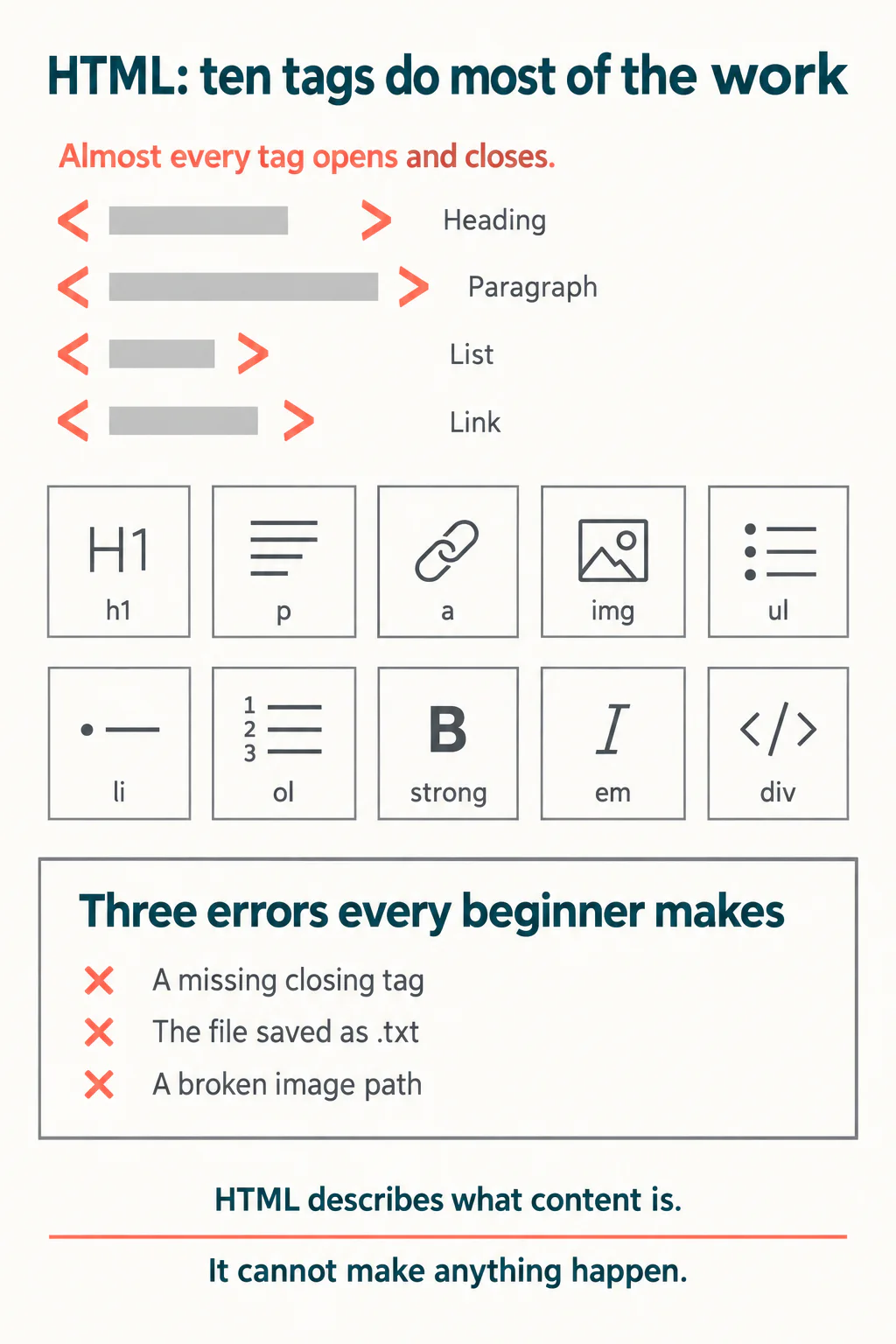
The three errors every beginner makes
Knowing these in advance turns a frustrating afternoon into a five-minute fix.
- A missing closing tag. Everything after it inherits the wrong formatting. Look above the point where the page went wrong, not at it.
- A file saved as .txt. The page opens as plain text showing all the tags. The fix is renaming it so it genuinely ends in .html, which on some computers means switching on file extensions first.
- A broken image path. The image sits in a different folder from the page. Keep everything in one folder at first, and name files in lowercase with no spaces.
There is a habit worth building alongside these: change one thing, predict what will happen, then reload and check. A child who predicts before reloading is debugging. A child who changes five things and reloads is guessing, and guessing does not get better with practice.
Where does HTML lead?
HTML alone makes a page that works and looks plain. The next two steps are CSS, which controls how it looks, and JavaScript, which finally adds the logic HTML cannot express. That trio is the whole front end of the web, and our beginner's guide to web development for kids maps the order they are usually learned in.
A reasonable pace for a motivated 10 to 12 year old: a fortnight on HTML until pages feel easy, then CSS, then JavaScript once they are asking for things to move or respond. Rushing to JavaScript before HTML is comfortable tends to produce a child who can follow a tutorial and cannot start a blank file, which is the outcome worth avoiding.
If you would rather this were structured, Codeyoung's web development classes for children follow that sequence with a teacher watching the screen.
Wrapping up
Basic HTML code for students is a small language doing an honest job. Ten tags, one file, no installation, and a real page in a browser by the end of the first sitting. Teach the meaning-carrying tags from the start, expect the three classic errors, and let the child build something they actually care about rather than a replica of someone else's page. Then be clear about the limit: HTML describes content, and the day your child wants the page to do something, that is a different language and a good moment to move on.
Codeyoung runs 1:1 live online classes for children aged 6 to 17, with a teacher who adapts the pace to your child rather than a fixed syllabus. The first class is free, so you can see how they respond before deciding.
Book a Free Trial